Signature Task Field
The Signature Task Field is a new feature that makes it easy to collect handwritten signatures inside any workflow. Whether a subscriber is signing from home, a technician is collecting a signature in person, or a subscriber needs to sign during an online form (outside of the shopping cart), the Signature field provides a simple, paper-free way to capture approval.
Note: This is not a legally binding/ DocuSign-verified signature. The more contractual path is the portal's package-based contact forms, which the customer signs as a PDF behind an email-verified login. This field is a lighter, more flexible version.
Quick Links:
- Where the Signature Field Can Be Used
- Adding the Signature Field
- What the Signer Will See
- What Gets Saved
- Customizing the Text
- Summary
Where the Signature Field Can Be Used
You can use the Signature field in three different ways depending on your needs:
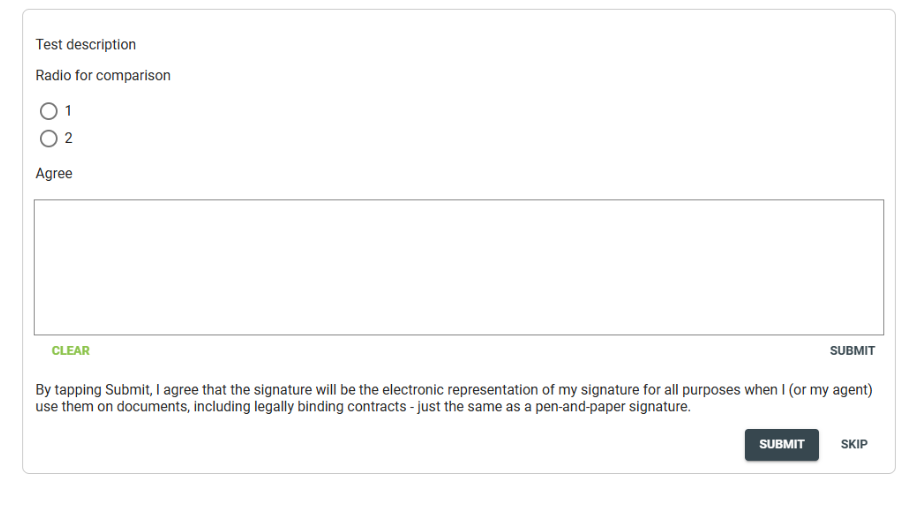
1. Public Shopping Cart (Subscriber-Workable)
Subscribers can sign while completing their order.
Useful for:
-
Confirming terms during signup
-
Acknowledging equipment included with their package
-
Approving optional add-on conditions
2. Subscriber-Workable Workflows (Portal)
You can also collect a signature in a subscriber-facing workflow that isn’t part of the shopping cart by attaching the signature field to a ticket accessible via the user portal.
This is helpful when you need a subscriber to sign for something after they already have an account, such as:
-
Acknowledging a late fee
-
Approving a one-time charge
-
Agreeing to updated service terms or policies
-
Confirming a payment arrangement
This allows subscribers to complete important approvals online without needing to call or visit the office.
3. Internal Workflows
If you collect signatures in person, a staff member or technician can pull up the workflow and have the customer sign directly on their device.
Use cases include:
-
Signing for an equipment pickup or drop-off
-
Approving installation work
-
Confirming service visits or appointment completion
No printed paperwork needed.
Adding the Signature Field
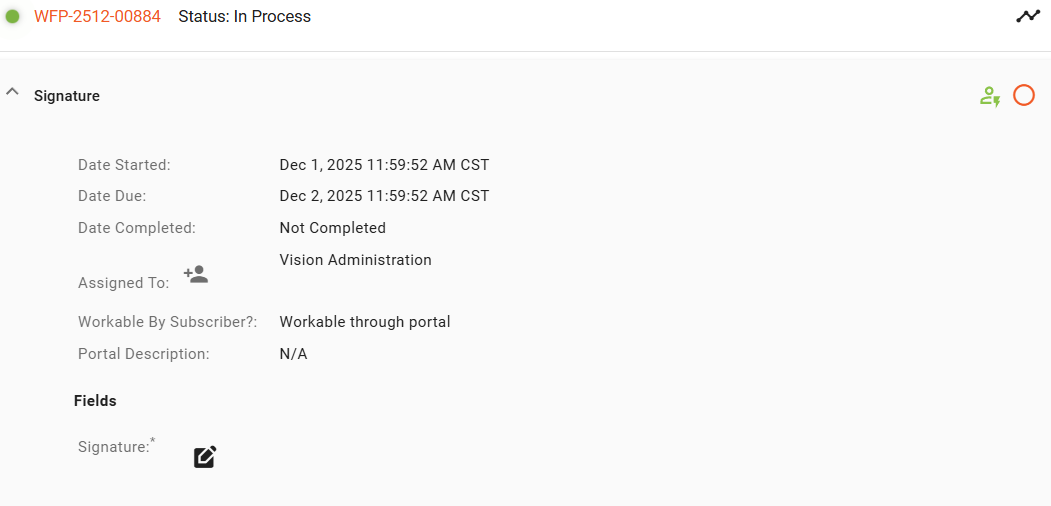
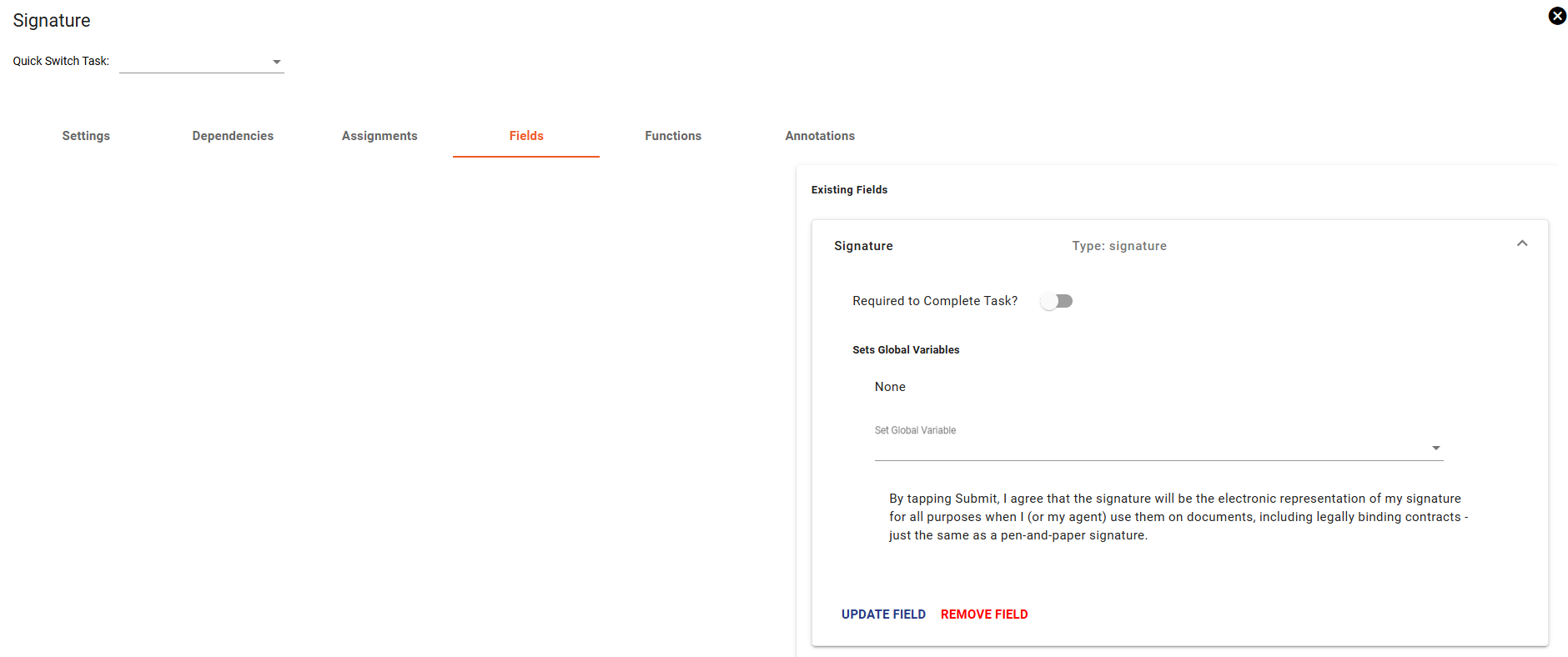
Adding the Signature field works just like any other task field.
-
Open Workflows in Admin Utilities.
-
Select the workflow you want to add it to.
-
Add a Signature Task Field.
-
(Optional) Turn on Subscriber Workable if you want subscribers to sign online.
-
Save your workflow.
If Subscriber Workable is turned off, the field can still be used by staff or technicians in person.
What the Signer Will See
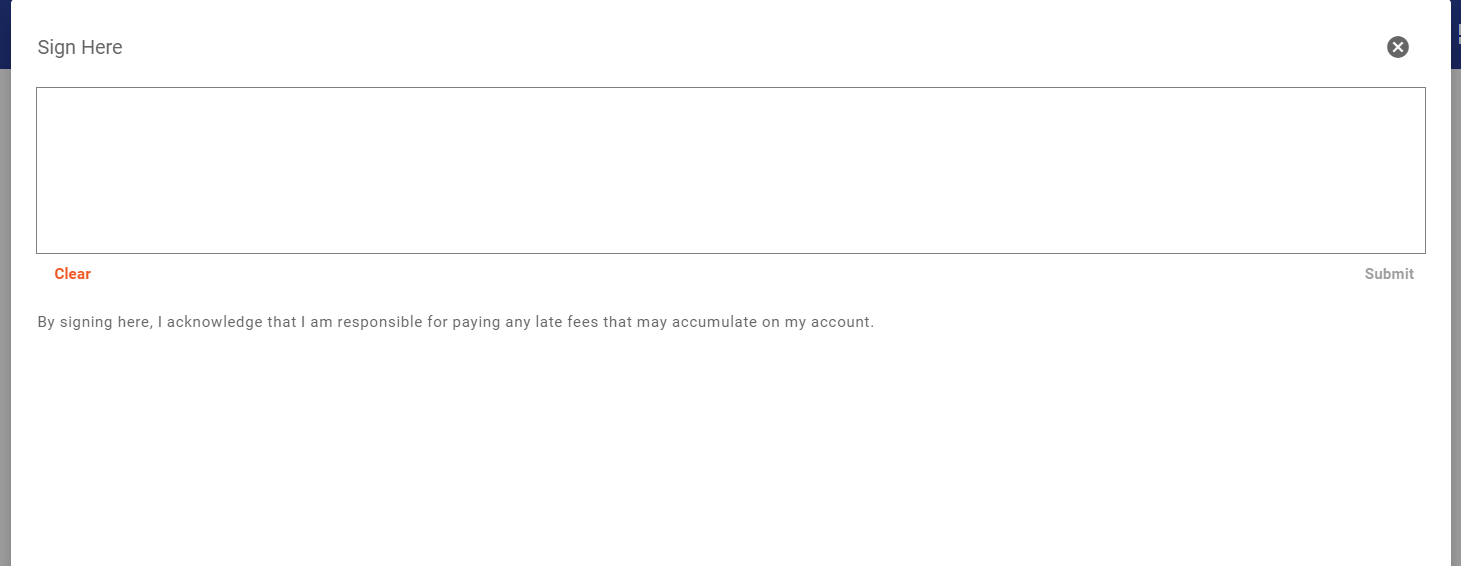
Whether the signer is a subscriber or an in-person technician, the experience is the same:
-
A heading or message explaining what they’re signing
-
A signature box
-
A Submit Signature button
-
A Clear button (before submission)
If the Signature field is required, the signer must press Submit Signature before they can continue.
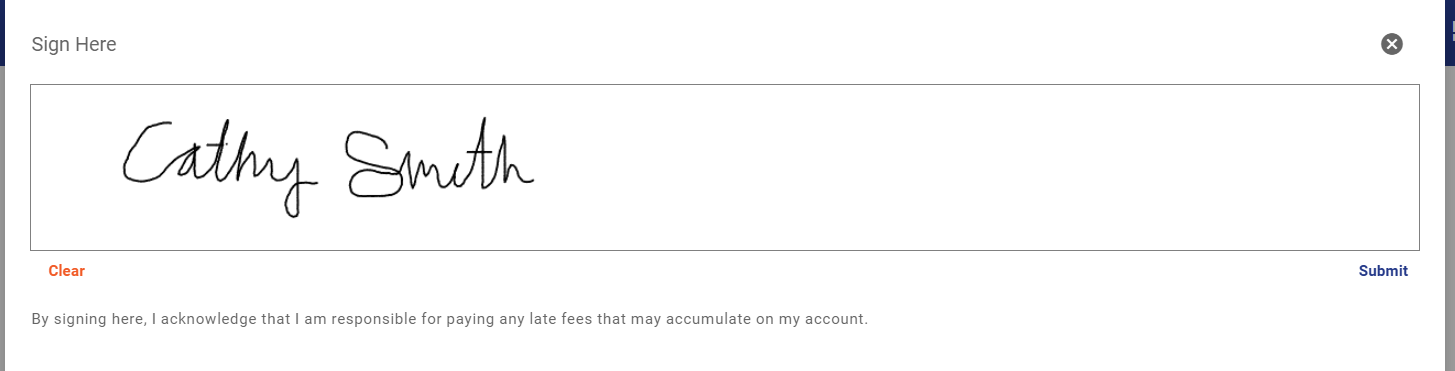
After they submit:
-
The pad locks and becomes read-only
-
Buttons disappear
-
The signature cannot be edited
-
The signature is automatically attached to the subscriber’s account or if done internally, attached to the workflow
-
A note is created with the exact text shown at signing

What Gets Saved
When a signature is submitted:
-
A copy of the signature is saved as an attachment
-
A note is added that includes:
-
The text that was shown above the signature box
-
The task field name (ex: “Package Received — Sign Here”)
-
-
This creates a permanent, uneditable record of exactly what the person agreed to
Customizing the Text
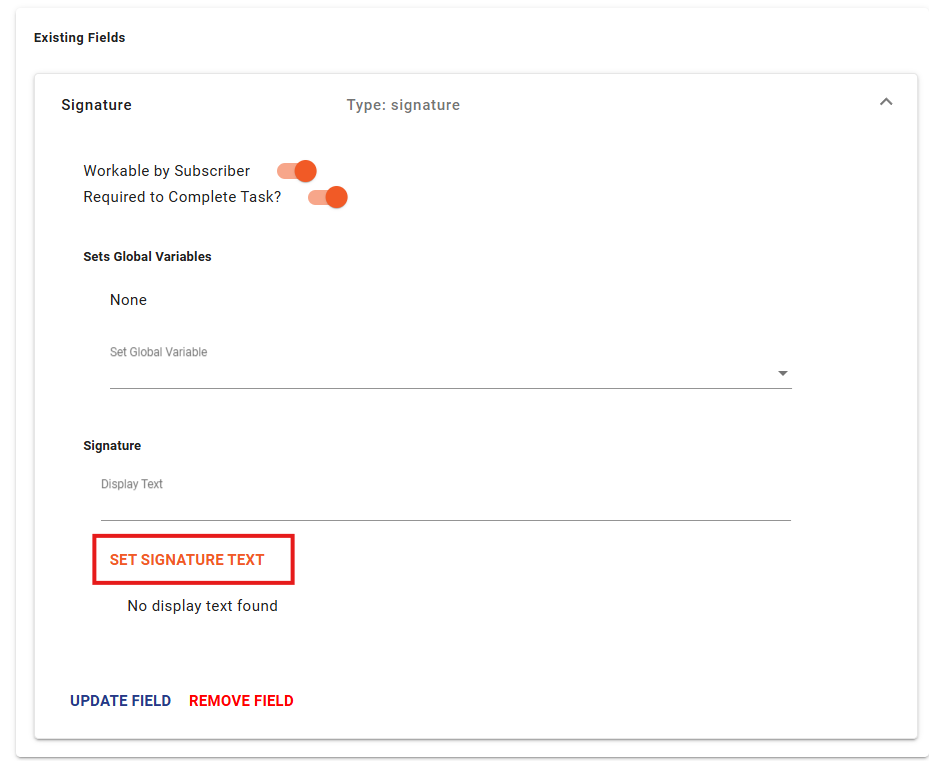
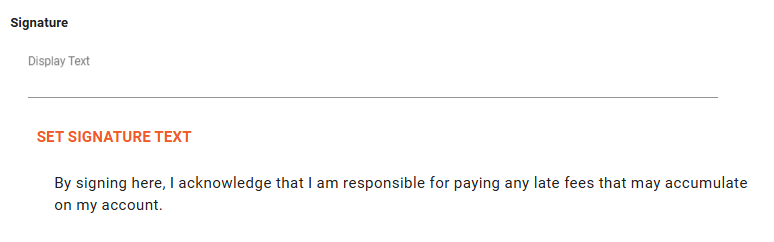
The text shown above the signature box can be set in:
Admin Utilities → Workflows → Task Field Settings
This same text is copied into the task note so you always know exactly what was displayed and signed.
Summary
The Signature Task Field makes it easy to collect signatures in any situation:
-
Public shopping cart sign-offs
-
Subscriber-workable workflows (ex: late fee acknowledgement)
-
In-person technician workflows
-
Simple, clean signing experience
-
Automatically saves a copy and note to the subscriber or workflow
-
Customizable text for clear communication