Referral Credits
Referral Program Overview
Vision’s referral program enables Providers to incentivize customers who refer others to sign up for service. Tags, workflows, and credit configurations allow for flexible tracking and reward mechanisms for both referrers and referrals. The program supports both manual and automated crediting workflows and includes tools like unique referral links, QR codes, and 4-digit codes for self-service referrals via the Subscriber Portal.
Quick Links:
- New vs Old Referral Logic
- Subscriber Referral Options
- Tags and Tracking Referrals
- Referral Workflows and Events
- Referrer Reports
- Important Notes
- Referral Credit Configuration
New vs. Old Referral Logic
Old Logic ("Ambassador Program")
- Focused on recurring or one-time credits based on a fixed number of referrals.
- Example: Refer 2 customers and get $10 credit monthly as long as they stay active.
- Tags tracked referrals, and batch billing picked up and applied the credits.
New Logic
-
Modern, flexible referral model where:
- Referrer and/or referral may each receive a one-time or conditional credit.
- Referral credits can require a paid invoice or minimum active months before applying.
- Referral links and codes allow customers to self-refer via the Subscriber Portal.
Subscriber Referral Options
Subscribers can refer friends, family, or coworkers using the Subscriber Portal.
Accessing Referral Tools:
-
Go to Main Menu > Refer a Friend.
- Options available:
- Referral Code: Unique 4-digit code tied to the customer.
- Referral Link: Directs friends to online signup with the referral code pre-applied.
- QR Code: Click the PDF icon to generate a QR code linking to signup.
When a friend signs up using any of these methods, a referral tag is automatically added to their account.
Tags & Tracking Referrals
Creating and Editing Referral Tags
- Navigate to Admin Utilities > Subscriber Management > Tag Types
- Tags should:
- Be set as editable.
- Use custom properties if you want to track additional info (e.g., who referred them).
- Use the "Has Overlay" setting if you want the tag to pop up on the subscriber page.
Applying Tags
- Manually: During sign-up over the phone or from reports.
- Automatically: Through referral links, codes, or workflows.
Referral Workflows & Events
Referral workflows are triggered by Calendar Events of type “Referrals.” These workflows can:
- Identify new referrals based on tags.
- Evaluate eligibility (e.g., paid invoices, active months).
- Apply referral credits to the referrer and/or referral based on your configured logic.
- Optionally send a “thank you” email to the referring and/or referred subscriber.
Thank You Email Feature
You can automatically send a thank-you message to subscribers when a referral is processed by:
- Creating a new Batch Notification Template.
- Associating that template with the referral workflow.
- The template will trigger on referral workflow creation, sending an email to the referrer and/or the referred subscriber (depending on your setup).
This is a great way to acknowledge and encourage continued referral activity without any manual effort.
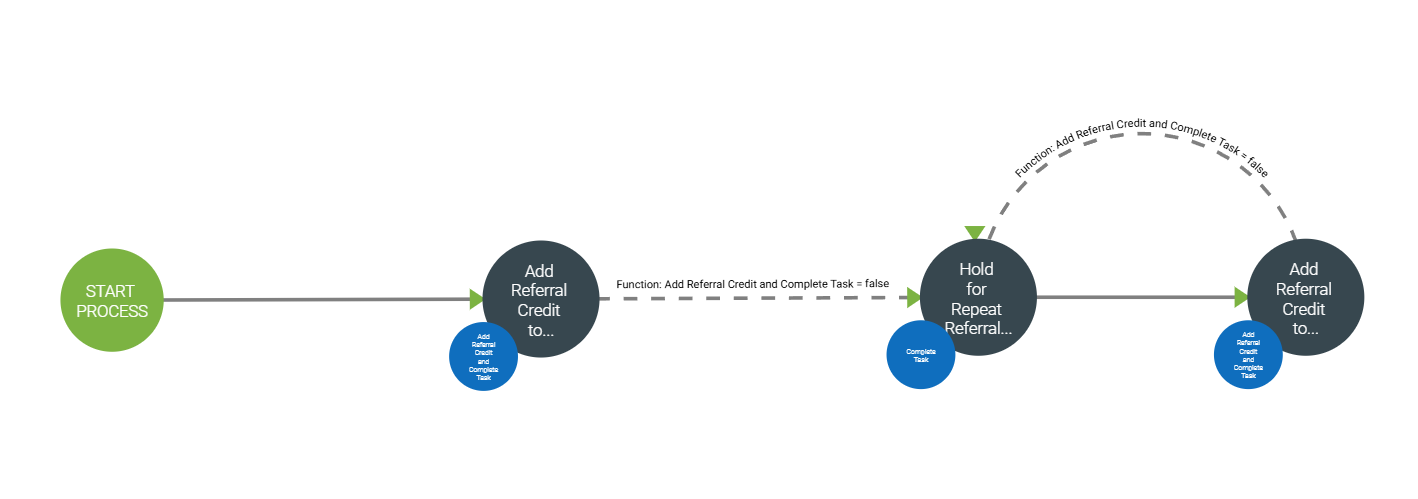
The image above illustrates a basic referral workflow. It begins by applying a custom credit amount to the subscriber associated with a referral code. The function then waits for a set period before checking for any new referrals. If a referral is found, the referring subscriber is awarded credit. This process repeats, periodically checking for new referrals and issuing credits accordingly.
Referrer Reports
To view and manage referrers:
- Go to Operations > Subscribers > Referrers Tab
- See all subscribers who have referred others.
- Click the icon to view their active referrals.
Important Notes
- Referral tags are the backbone of the system. Without a tag, referrals can't be credited.
- Workflows ensure that credits are only applied when the correct conditions are met.
- Admins can choose to use automated or manual workflows depending on business needs.
- Recurring credits are not currently supported by the new workflow (one-time only for now).
| Option | Description |
|---|---|
| Credit Type | Defines the type of credit applied (must be set up in Admin). |
| Apply Credit Only Once? | If true, referrers get the credit only once per referral milestone. |
| Require Paid Invoice? | If true, both referrer and referral must have a paid invoice before receiving credits. |
| Apply Credit to Referrer? | If true, referrers get the credit. |
| Apply Credit to Referral? | If true, new subscribers also get a credit. |
| Number of Referrals Required for Credit | Credit is applied every X referrals. |
| Number of Active Service Months | Referrals must be active for this many months before credits apply. |
| Amount of Credit to Referrer | Dollar amount to credit to the referrer. |
| Amount of Credit to Referral | Dollar amount to credit to the referral. |
Changing these options after launch may result in unintended behavior.
Creating a Referral Credit Tag and Referral Credit
- Referral credit tag type is accessed under Admin Utilities > Subscriber Management > Tag Types.
- Edit the referral credit type under Admin Utilities > Credits.
- Configure how the referral credit type is treated by the system under Operations > Billing > Batch Transactions.
Tag Types
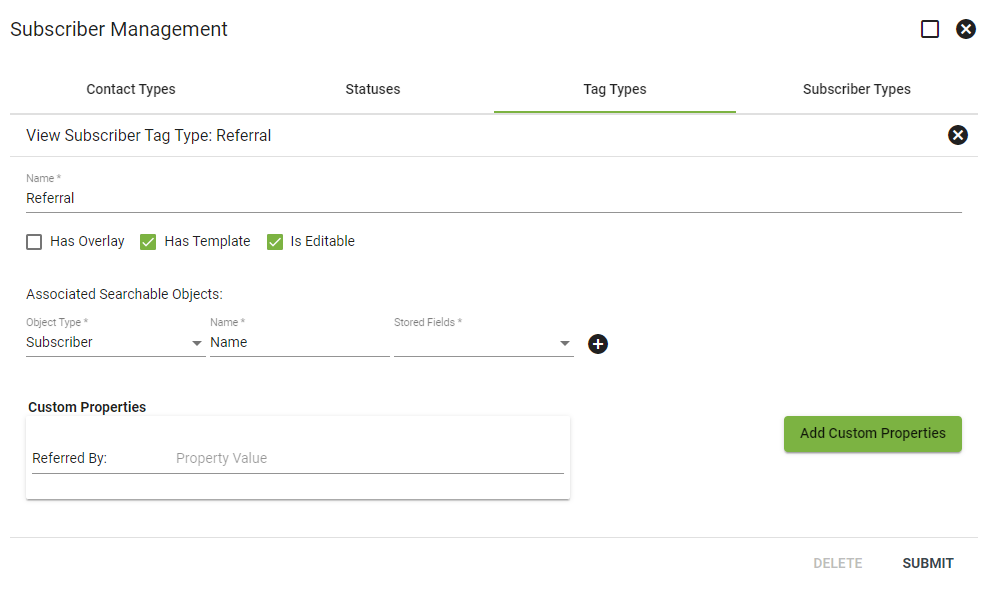
View and make changes to the referral credit tag type under Admin Utilities > Subscriber Management > Tag Types.
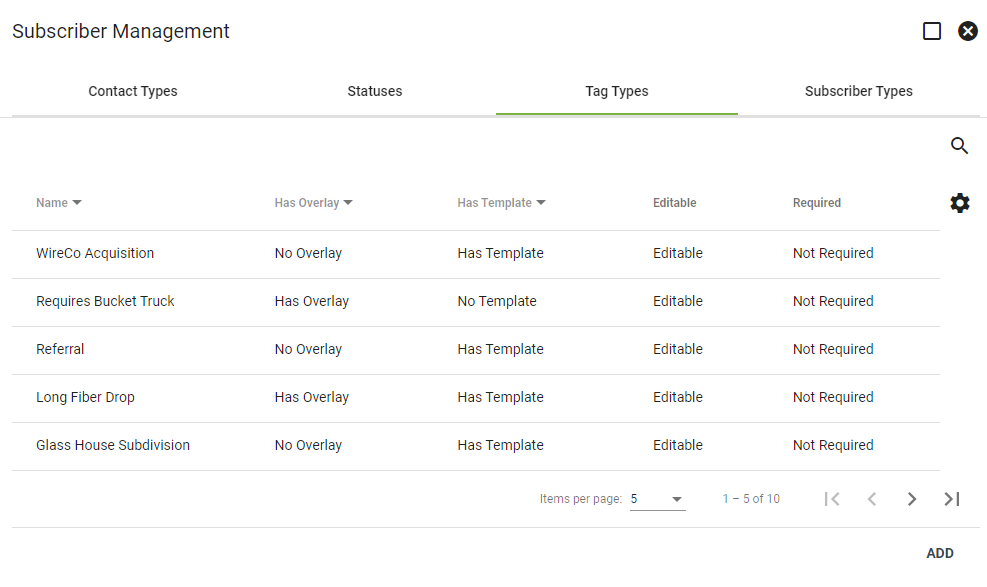
Click on a tag type to view more information. Select EDIT in the bottom righthand corner to make changes.
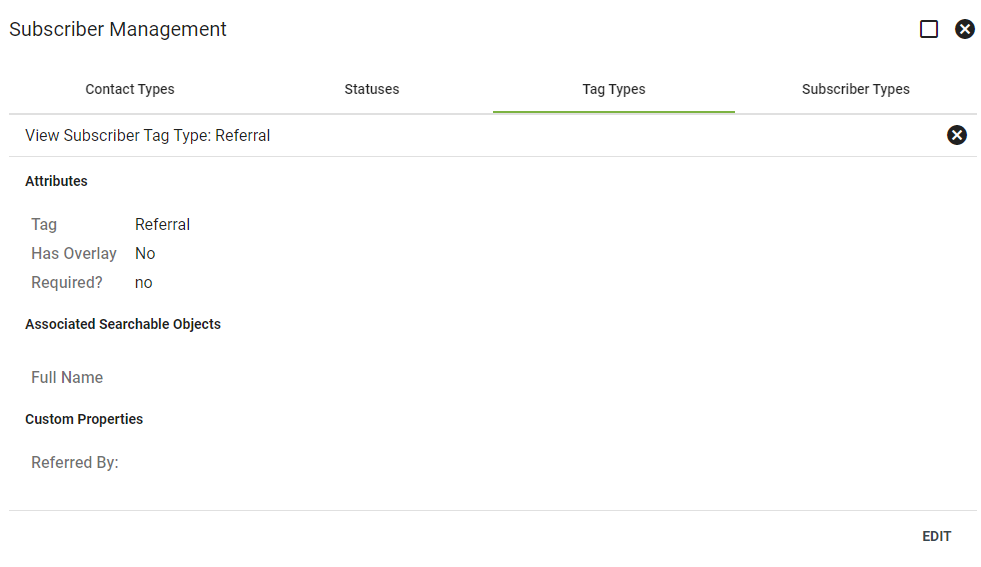
Edit Referral Tag
Click EDIT in the bottom righthand corner of the applicable tag to make changes.
Make changes to the tag name and settings. Change how the tag can be searched under associated searchable objects. To add an associated searchable object, select the applicable descriptors from the dropdown menu. Click the  button to add.
Click on the Add Custom Properties button to add a new custom property. The custom properties field can be used to log information specific to a certain subscriber.
Select SUBMIT to save, or DELETE to remove the tag.
Add Referral Tag
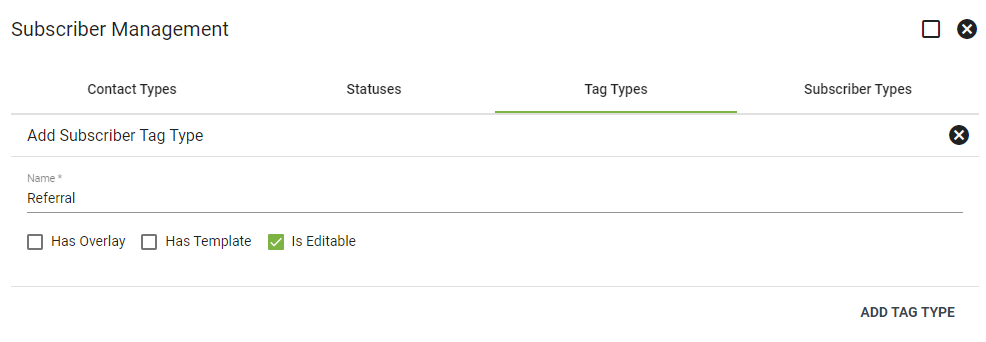
Click ADD in the bottom righthand corner of the main tag types page to add a new tag. Select the applicable checkboxes next to the options below.
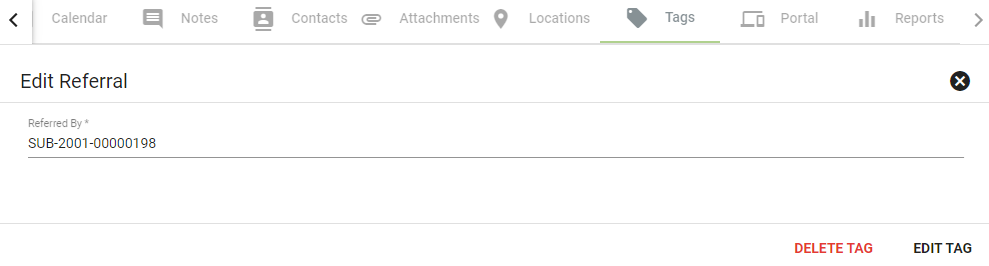
Has Overlay will allow the Tag to pop up anytime a user opens the Subscriber Account Page. Has Template allows you to add custom properties to the tag. For instance, the tag below has a custom property that allows a user to enter referral information. Is Editable allows the user to edit the tag upon adding. When finished, click ADD TAG TYPE.
Billing Processes
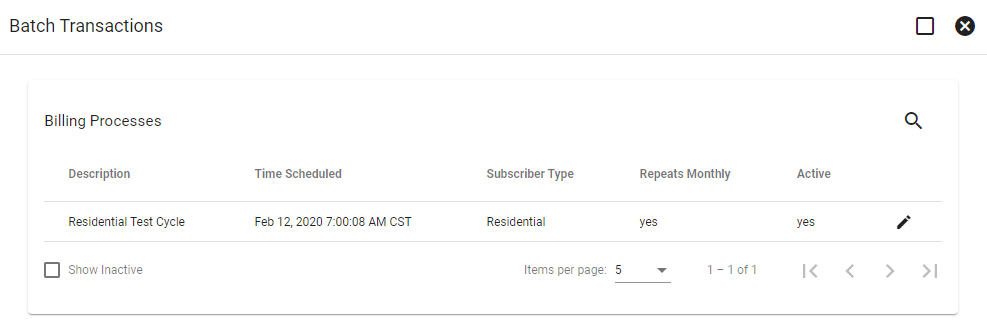
The billing system configures the referral credit type under Operations > Billing > Batch Transactions.
In this edit menu, you are able to change the number of referrals that must be in place before the referral credit is applied.
Click on the edit  icon next to a billing cycle to make changes to the cycle.
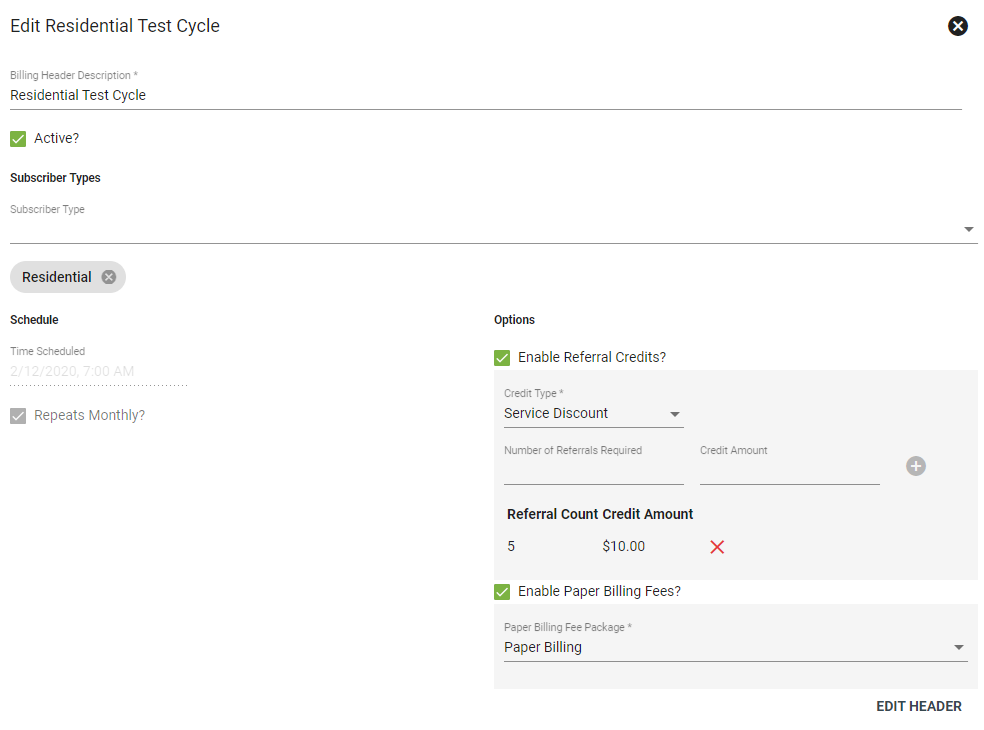
Make changes to the header description or change the cycle status to active or inactive. Select a subscriber type from the dropdown menu.
Under the Options section, make changes to enable or disable referral credits and paper billing fees. Select a credit type from the dropdown menu to make changes to the referral credit type. Input the referral credit dollar amount and the number of referrals. Select the paper billing fee package from the dropdown menu.
Click EDIT HEADER when finished.
Credits
The credit types admin page allows administrators to add, edit and delete credit types. Access credit types under Admin Utilities > Credits.
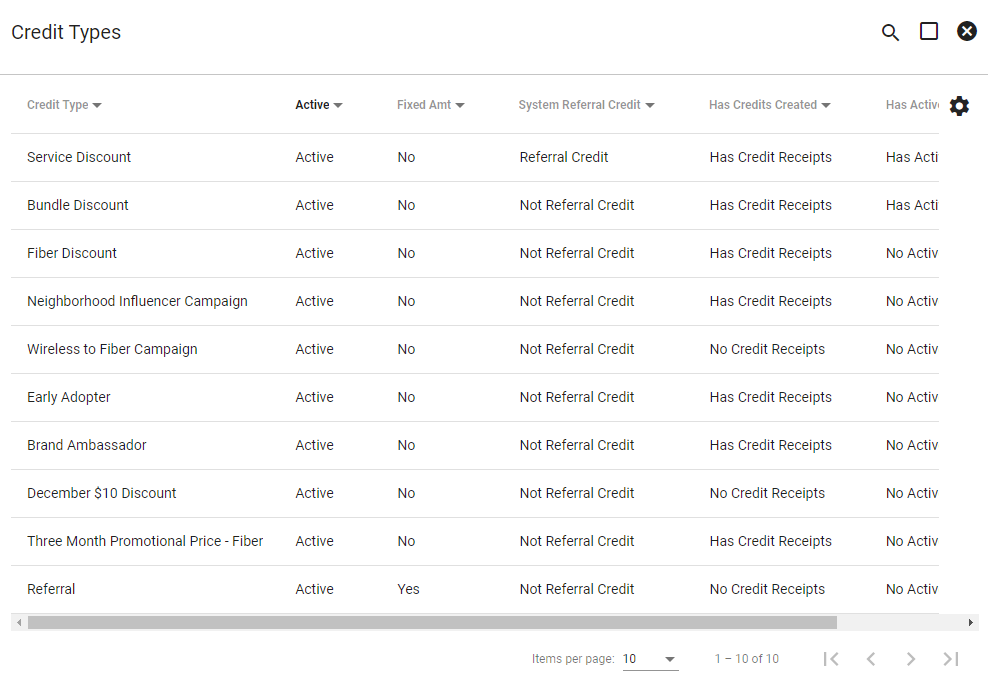
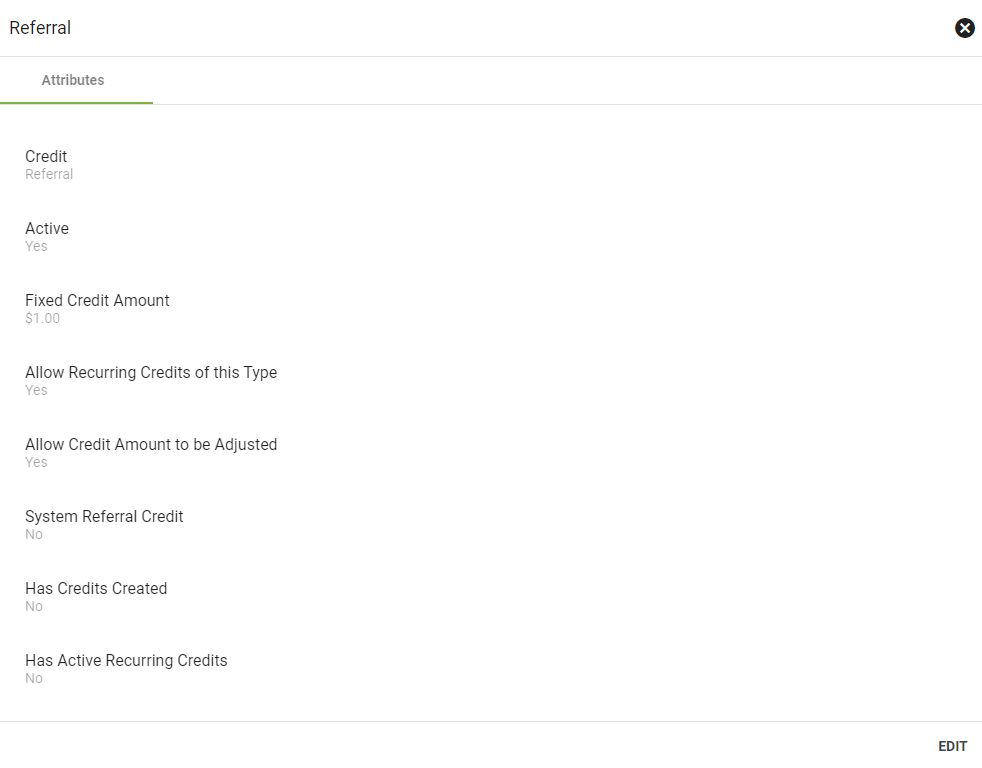
Click on a credit type to view attributes. Credit types that are currently in use cannot be deleted or edited.
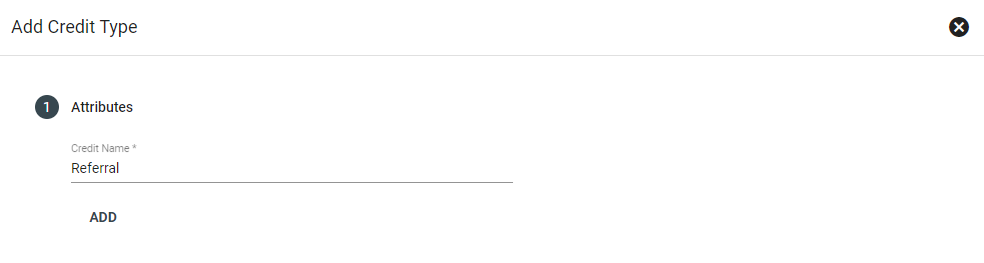
Click  on the credit types page. Enter a name, then click ADD.
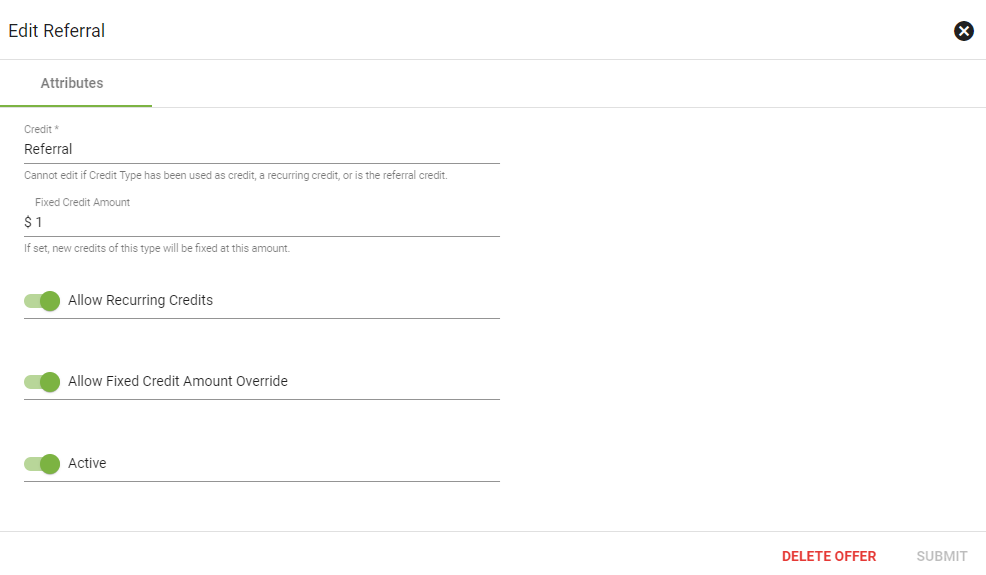
If a credit type has not been used, click EDIT in the lower right to make changes or delete the credit type. Here you can change the name of the credit type or change it to inactive.
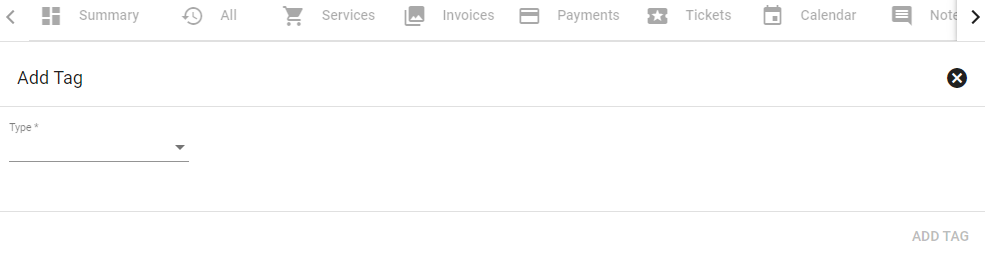
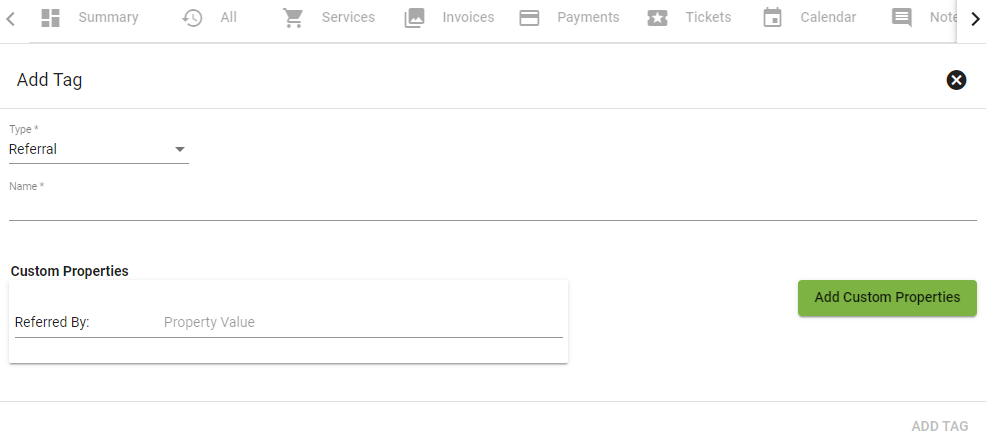
Add Tag to Subscriber Account
To add a tag, click the 

If desired click 
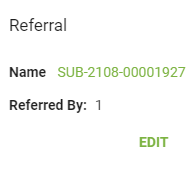
View credits on a subscriber's account under the tags tab.

Only tags with custom properties are able to edited. Click on the applicable tag, then click EDIT.
Click on the applicable tag, then select DELETE TAG in the lower righthand corner.