Yard Sign Referral Campaigns
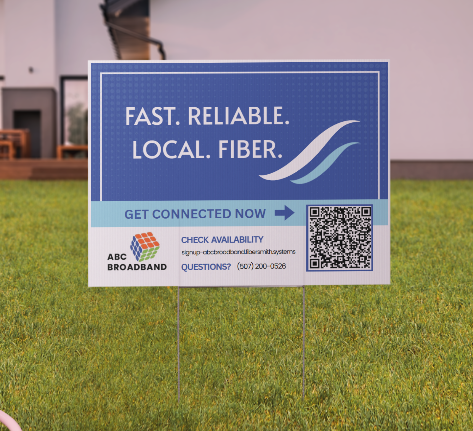
The Yard Sign Referral Promotion allows providers to place QR-coded yard signs at existing customer locations and track new customer referrals through Vision. When a new customer scans the QR code and signs up, Vision can associate the referral activity back to the yard sign location so referral incentives can be tracked and applied.
This promotion is useful for neighborhood-based marketing because the sign is tied to a real customer location. A yard sign placed in a customer’s yard can help attract nearby prospects, while Vision tracks the sign placement, pickup timing, and referral activity.
Quick Links
Related Pages
Initial Setup
Before using yard sign referrals, some setup may be required.
A Yard Sign product type should be created in Inventory > Manufacturers, you add the vendor then the type under the vendor so yard signs can be tracked as inventory and added to purchase orders. This may require developer assistance.

A Yard Sign service item component should also be created and tied to tblHardware. This allows the yard sign to be treated as hardware that can be assigned to a customer location.
Once the product type and service item component are available, create the following:
-
Yard Sign service item
-
Yard Sign package
-
Yard Sign offer
-
Yard Sign placement workflow
-
Yard Sign cancellation or pickup workflow
-
Referral workflow, if not already enabled
-
Referral credit type, if incentives will be issued through credits
Referrals must be enabled in the system, and the Referral workflow should be active before launching the promotion.
For more information on setting up referral credits, check out the page on referral credits.
Placing a Yard Sign
To track a yard sign placement, navigate to the customer account that will receive the sign.
Click the + button in the bottom-right corner of the page and select Add Service. Choose the Yard Sign Placement package. The Other service type may need to be selected in order for the package to appear. Add the package to the cart and proceed through the checkout steps.
Because this is a non-billable package, it will not appear on the customer’s invoice.
After the package is added, the yard sign placement workflow will automatically launch. The first task is Place yard sign. Use the Yard Sign ID field to select the specific yard sign being placed at the customer’s location. This should use the associated hardware ID for the sign.
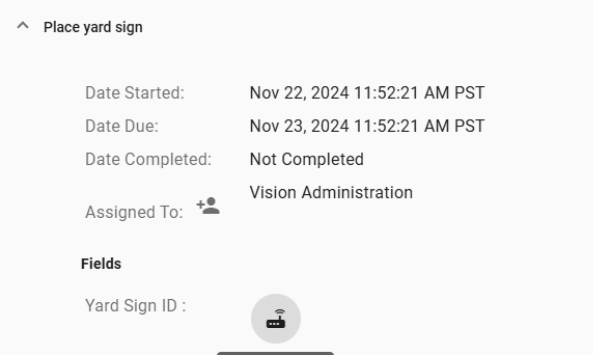
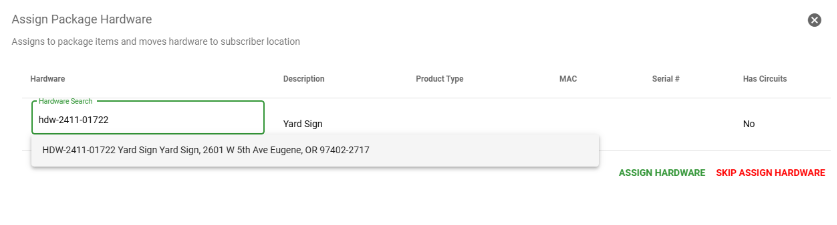
Use the Select pick-up date field to choose when the team should be reminded to retrieve the sign. This date can be adjusted or extended later if needed.
Note: Yard sign design and printing are handled outside of Vision through the provider of your choice.
Once the sign has been placed, complete the Place yard sign task.
Tracking Pickup
After the placement task is completed, the workflow will pause until the selected pickup date. On that date, the Confirm Yard Sign Pickup task will launch.
At that point, choose whether the sign is ready to be picked up or whether the customer would like to leave it out longer. If the sign should stay in place, reschedule the pickup date.
If the sign is ready to be picked up, complete the confirmation task and launch the cancellation workflow on the customer’s Yard Sign package.
The cancellation workflow will launch a Retrieve Yard Sign task. Use this task to mark the yard sign equipment as returned. After the task is completed, Vision will automatically complete the cancellation of the Yard Sign package on the customer’s account.

Referral Tracking
Each yard sign can include a QR code that directs new customers to the appropriate sign-up or referral path. When a new customer scans the code, Vision can track the referral source and help apply the proper incentive.
This allows teams to connect physical marketing activity, such as a sign placed in a customer’s yard, back to customer growth and referral rewards inside Vision.