Referral Credits
Vision’s Referral Credits tools allow providers to track customer referrals and apply referral-based incentives. Referral activity can be managed through referral codes, referral links, QR codes, tags, workflows, reports, and credit configurations.
Subscribers can refer friends, family, or coworkers through the Subscriber Portal. When someone signs up using a referral code, referral link, or QR code, Vision can track the referral and apply the appropriate credit based on the provider’s configured rules.
Referral credits may be applied to the referring subscriber, the referred subscriber, or both. Credits can be configured as one-time incentives or based on specific requirements, such as a paid invoice or a minimum amount of active service time.
Quick Links:
- Referral Credit Logic
- Subscriber Referral Options
- Referral Codes, Links, and QR Codes
- Tags and Referral Tracking
- Referral Calendar Event
- Referral Workflows
- Referrer Reports
- Referral Credit Configuration
- Adding Referral Tags to Subscriber Accounts
Related Pages:
Note: Referrals must be enabled in the system in order to be used. To turn on referrals, contact our support team.
Referral Credit Logic
Vision supports flexible referral credit rules that can be configured based on the provider’s referral program.
Referral credits can be applied to the referring subscriber, the referred subscriber, or both. These credits may be applied as a one-time incentive or only after certain requirements have been met.
For example, a referral credit may be configured to apply after the referred subscriber pays an invoice or remains active for a set number of months.
Referral links, referral codes, and QR codes can also be used through the Subscriber Portal, allowing subscribers to share referrals directly and making it easier to track referral activity in Vision.
Subscriber Referral Options
Subscribers can access referral tools from the Subscriber Portal.
Go to: Main Menu > Refer a Friend
Depending on the provider’s setup, subscribers may have access to the following options:
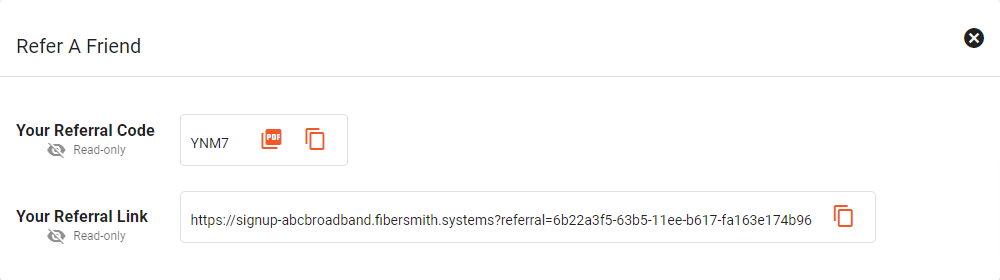
Referral Code- A unique 4-digit code tied to the subscriber.
Referral Link- A direct link to the online signup page with the subscriber’s referral code already applied.
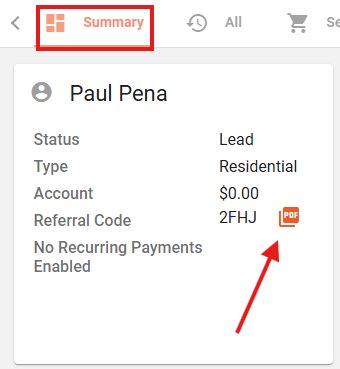
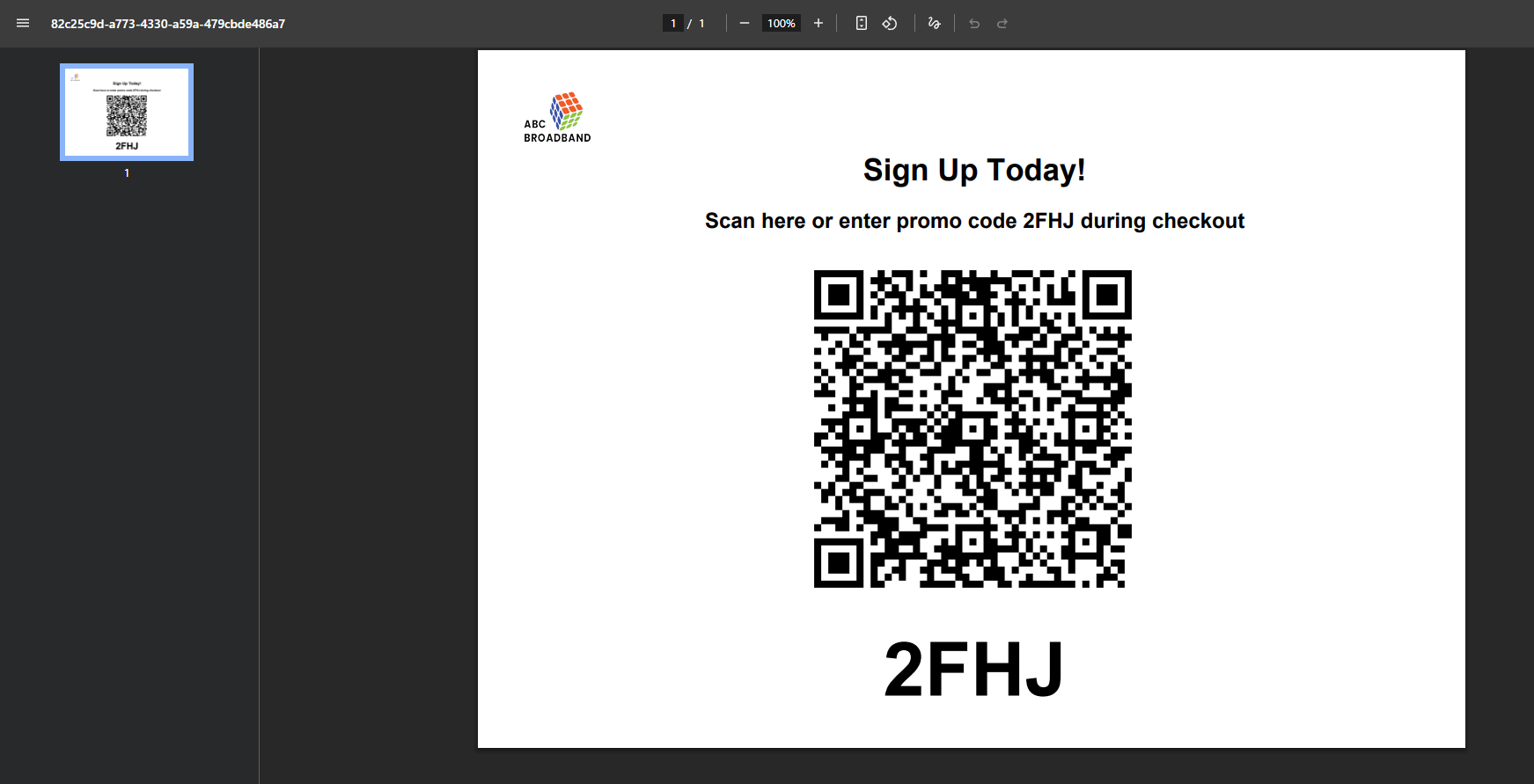
QR Code- A scannable QR code that directs new customers to the online signup page. Subscribers can generate this by selecting the PDF icon.
When a new customer signs up using one of these referral methods, Vision can automatically add a referral tag to the new subscriber’s account.
Referral Codes, Links, and QR Codes
Referral codes, custom URLs, and QR codes make it easier for subscribers to share referral information with potential new customers.
These referral tools can be found on the subscriber’s account summary tab in Vision. Subscribers can also access their own referral information through the Subscriber Portal.
Upon request, Vision can add unique 4-digit referral codes to all existing and future subscribers.
Tags and Referral Tracking
Referral tags are used to connect a referred subscriber account to the subscriber who referred them. These tags are an important part of referral tracking and credit application.
Referral tags may be added manually or automatically.
- Manual referral tags may be added when a subscriber signs up over the phone, from internal reports, or directly from the subscriber account.
- See Referral Credits :: Vision Support for how to manually add a tag on a Subscriber's account.
- Automatic referral tags may be added when a new customer signs up using a referral link, referral code, QR code, or configured referral workflow.
Without a referral tag, Vision cannot connect the referred subscriber to the referrer for referral crediting.
Referral Calendar Event
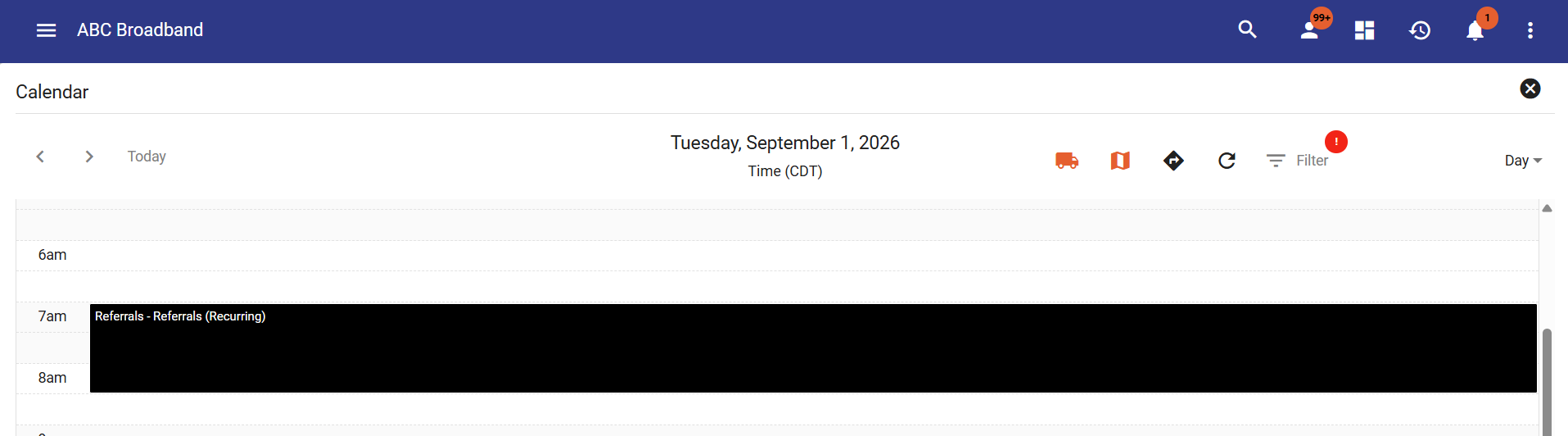
A Referral Calendar Event is a special calendar event type used to process referrals automatically.
When the event runs, Vision searches for newly added Referral Tags on Subscriber accounts. When a new referral is found, the associated Referral Workflow is automatically started.
Referral Calendar Events are typically configured to repeat everyday, indefinitely, at a specified time. This allows Vision to regularly check for new referrals and process them automatically.
To add a Referral Calendar Event:
- Navigate to the hamburger menu in the top left corner and click on Calendars.
- Select to Add Calendar Event via the floating add button in the bottom right corner.
- Select the time at which the referral check should run.
- Select Referrals as the Event Type.
- Set the event to repeat daily and indefinitely.
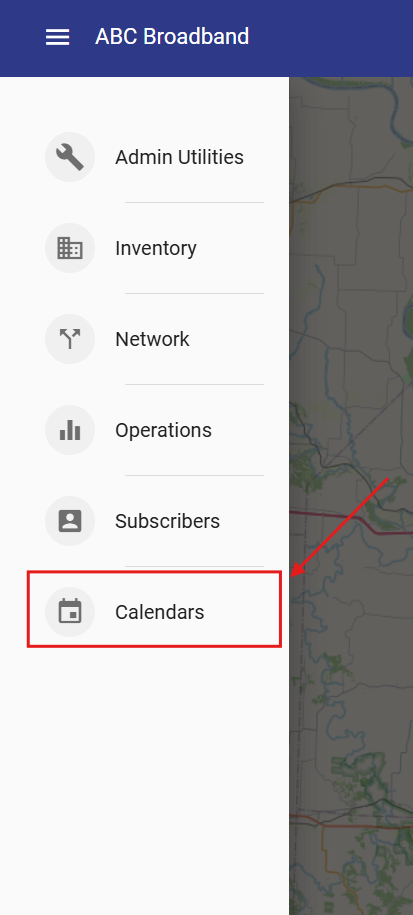
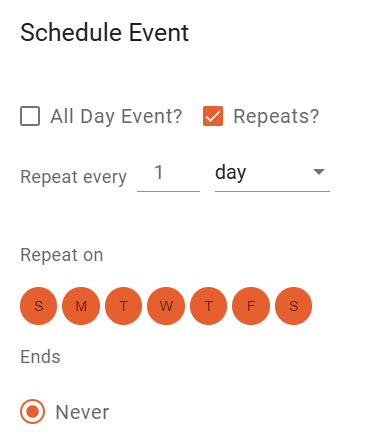
The Referral Calendar Event will then run automatically at the scheduled time each day and check for newly added Referral Tags. Any new referrals found will trigger the associated Referral Workflow.
Referral Workflows
Referral workflows are commonly triggered by calendar events with the Referrals event type.
Referral workflows can be used to:
- Identify new referrals based on referral tags
- Evaluate referral credit eligibility
- Check conditions such as paid invoices or minimum active months
- Apply referral credits to the referrer, the referred subscriber, or both
- Send thank-you emails to the referrer and/or referred subscriber
Workflows help ensure referral credits are only applied when the correct requirements have been met.
Thank You Emails
Vision can send thank-you emails when a referral is processed.
To set this up, create a Batch Notification Template in Admin Utilities> Email Templates and Drafts and associate it with the referral workflow. The template can be triggered when the referral workflow is created.
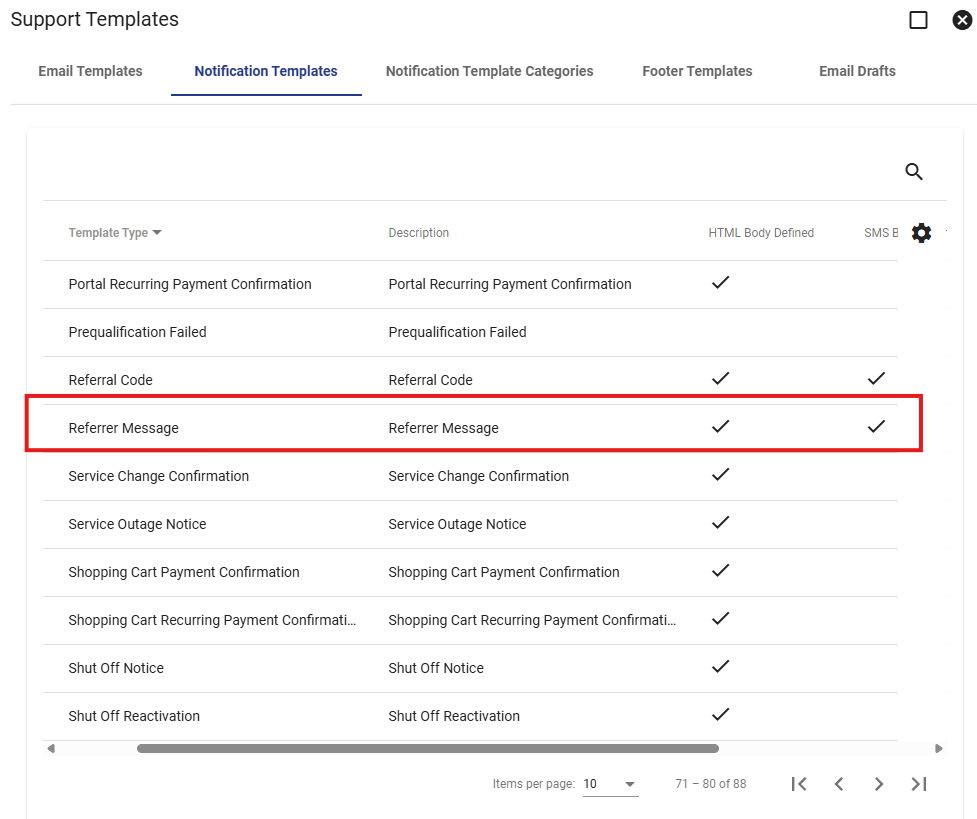
Depending on the workflow setup, the email can be sent to the referring subscriber, the referred subscriber, or both. This is a simple way to acknowledge referral activity and encourage subscribers to continue sharing their referral information.
Example Referral Workflow
A Referral Workflow determines what happens after a new referral is identified. Workflows can be configured to check referral eligibility, apply credits, and perform additional actions such as sending a thank you email.
The examples below show two common workflow configurations. The first includes the basic steps for processing a referral, while the second includes an additional Thank You Email task.
Basic Referral Workflow - Processes the referral and applies the configured credit.
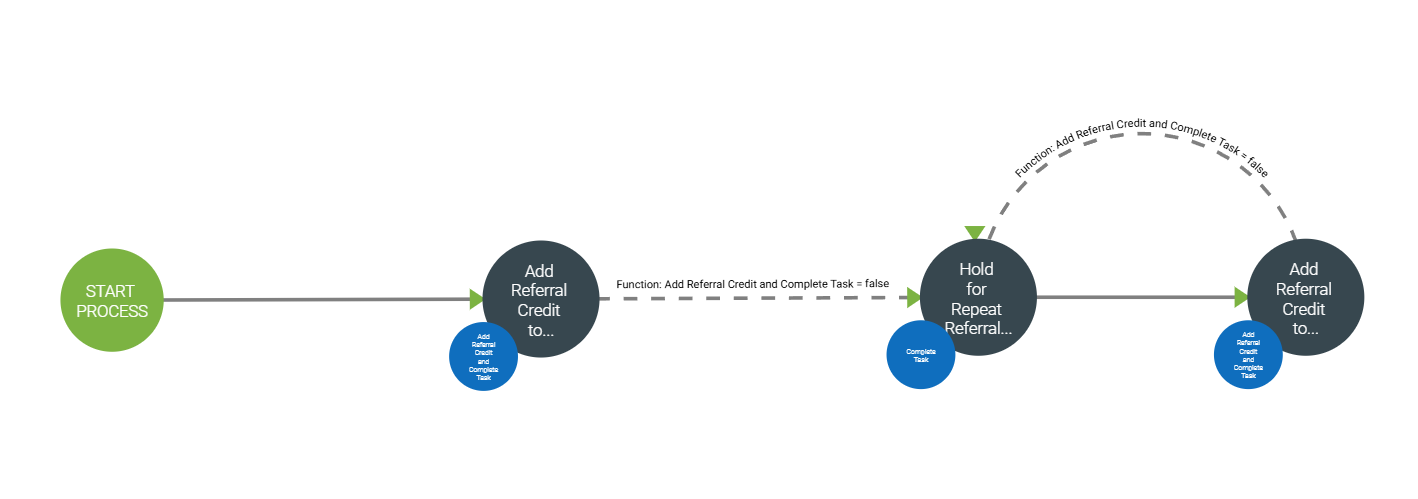
Referral Workflow with Thank You Email - Adds an automated thank you message to the referral process.
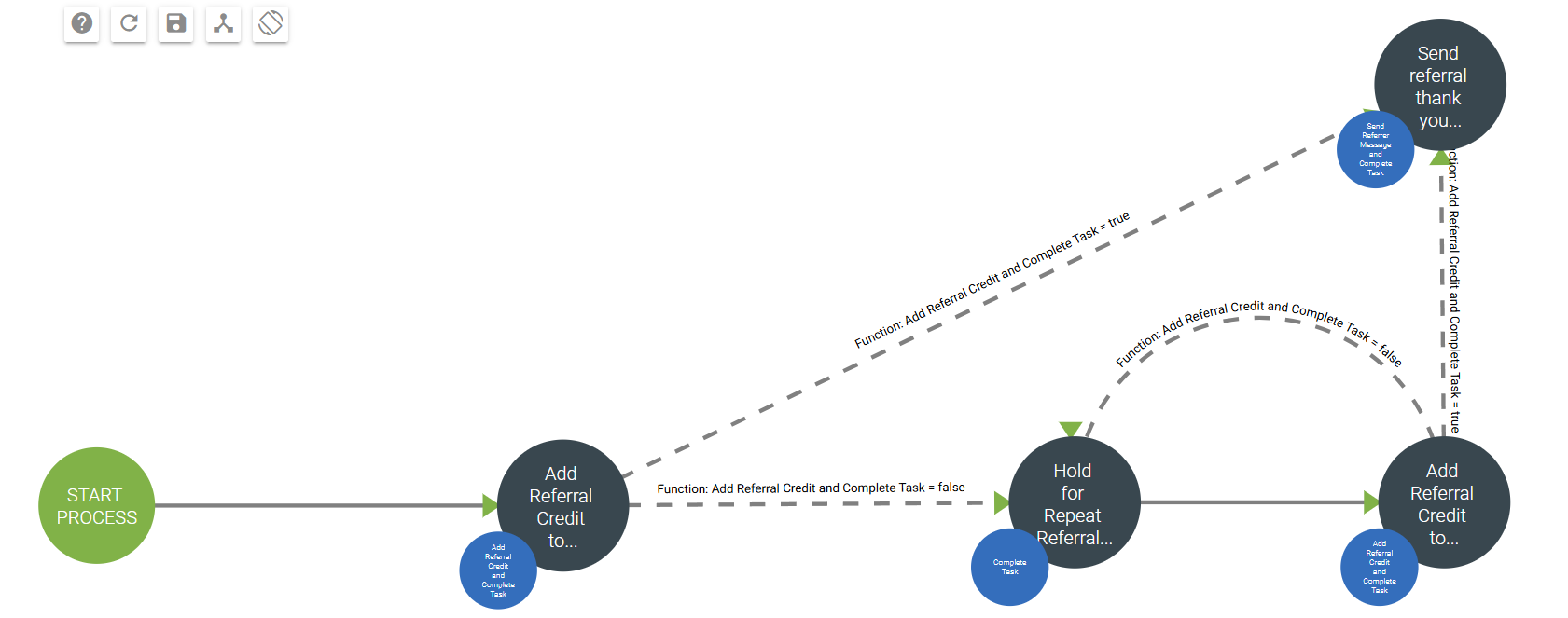
Referral Task Functions
Referral Workflows can include different task functions to determine what actions are taken when a referral is processed. Each task function can be configured using its available arguments.
Add Referral Credit
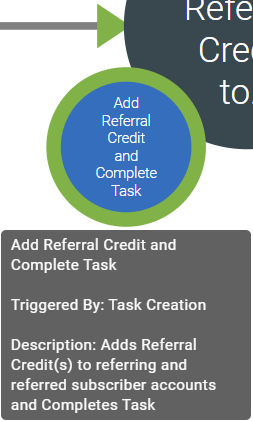
The Add Referral Credit task function determines whether a referral qualifies for credit and who should receive it.
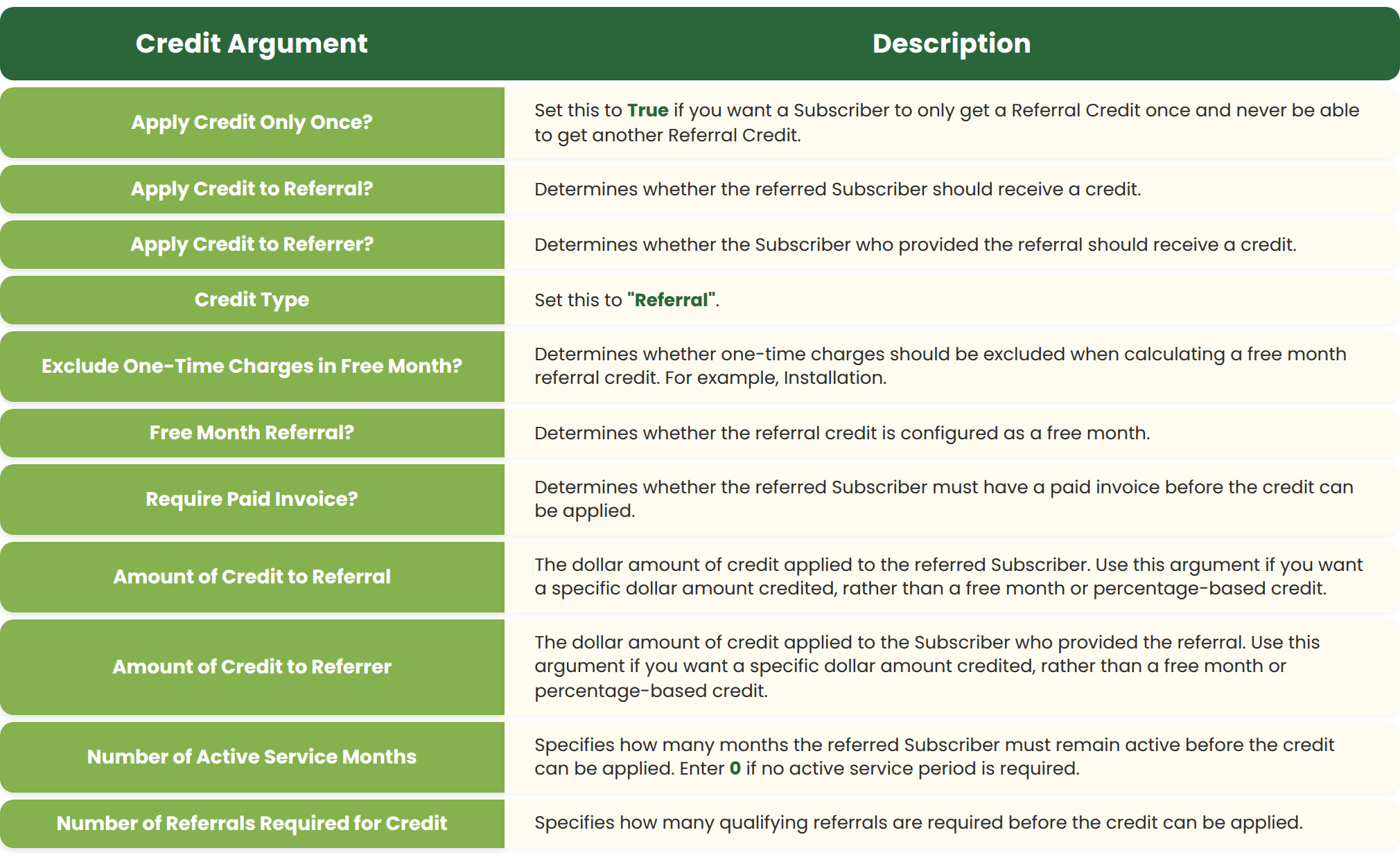
Within this task function, use the available arguments to configure the credit amounts and requirements:
Send Referrer Message
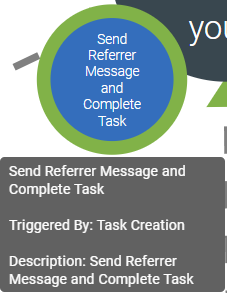
The Send Referrer Message task function sends a message to the referrer, the existing Subscriber whose referral code was used.
Use the task's arguments to select the message template that should be sent. Vision automatically sends the selected message to the referring Subscriber when the task runs.
Referrer Reports
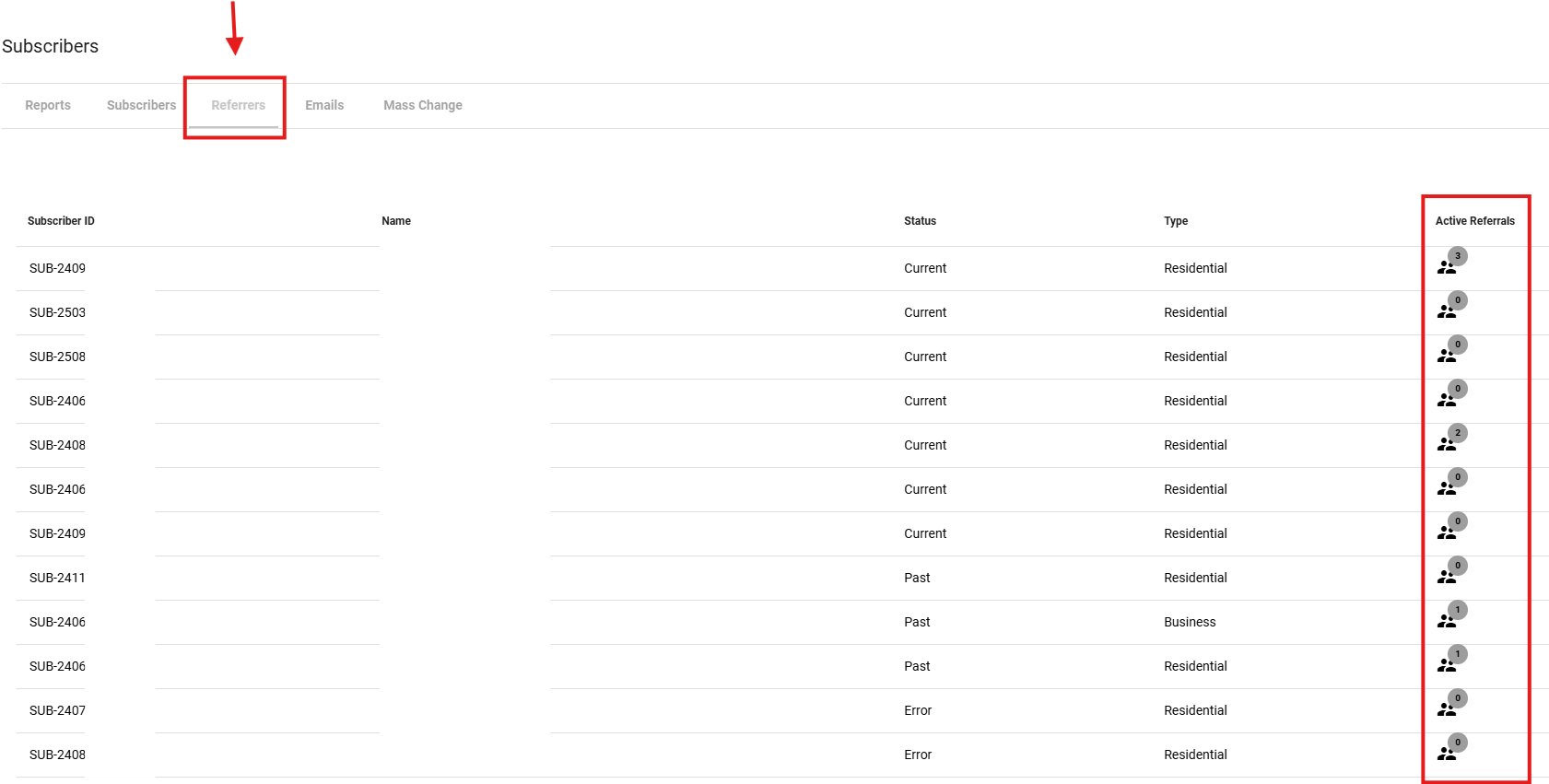
Referrer activity can be reviewed from the Referrers tab.
Go to: Operations > Subscribers > Referrers
From this page, users can view subscribers who have referred others. Select the referral icon to view active referrals tied to a specific subscriber.
Referral Credit Configuration
Referral credit configuration controls how referral incentives are created, tracked, and applied in Vision.
The main areas involved in referral credit setup are:
Referral Credit Tag Type- Managed from Admin Utilities > Subscriber Management > Tag Types.
Referral Credit Type- Managed from Admin Utilities > Credits.
Billing Configuration- Managed from Operations > Billing > Batch Transactions.
These settings define how referral credits are tracked, which credit type is used, and when the credit should be applied.
Tag Types
Tag types can be viewed and managed from:
Admin Utilities > Subscriber Management > Tag Types
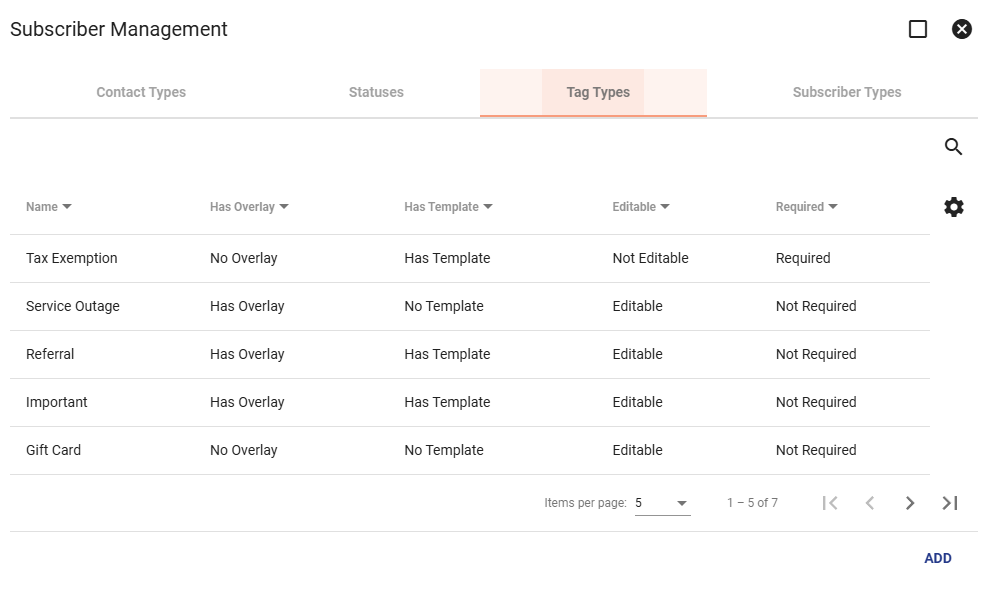
Select a tag type to view its details. Click Edit in the bottom-right corner to make changes.
When editing a referral tag type, users can update the tag name, settings, searchable objects, and custom properties.
Custom properties can be used to track referral-specific information, such as the referring subscriber or additional referral notes.
Click Submit to save changes, or Delete to remove the tag type.
Adding a Referral Tag Type
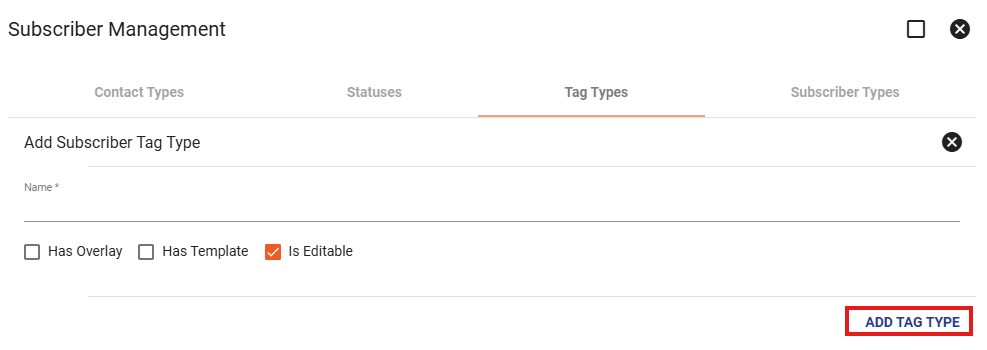
To add a new referral tag type, click Add from the main Tag Types page.
Select the applicable settings:
Has Overlay- Displays the tag as a pop-up when a user opens the subscriber account page.
Has Template- Allows custom properties to be added to the tag.
Is Editable- Allows users to edit the tag after it has been added.
When finished, click Add Tag Type.
Billing Processes
Referral credit billing settings can be configured from:
Operations > Billing > Batch Transactions
From this area, users can define how referral credits are applied during billing. This may include selecting the referral credit type, setting the referral credit amount, and defining the number of referrals required before the credit is applied.
To edit a billing cycle, click the edit icon next to the applicable cycle.
From the edit menu, users can update the header description, change the cycle status, select a subscriber type, and configure billing options.
Under Options, users can enable or disable referral credits, select the referral credit type, enter the credit amount, and define the number of referrals required.
Click Edit Header to save changes.
Credit Types
Credit types are managed from:
Admin Utilities > Credits
From this page, administrators can add, edit, or delete credit types.
Select a credit type to view its attributes. Credit types that are currently in use cannot be edited or deleted.
To add a new credit type, click the add button, enter a name, and click Add.
If a credit type has not been used, click Edit to update the name, mark it inactive, or delete it.
Adding Referral Tags to Subscriber Accounts
Referral tags can be added directly from a subscriber account.
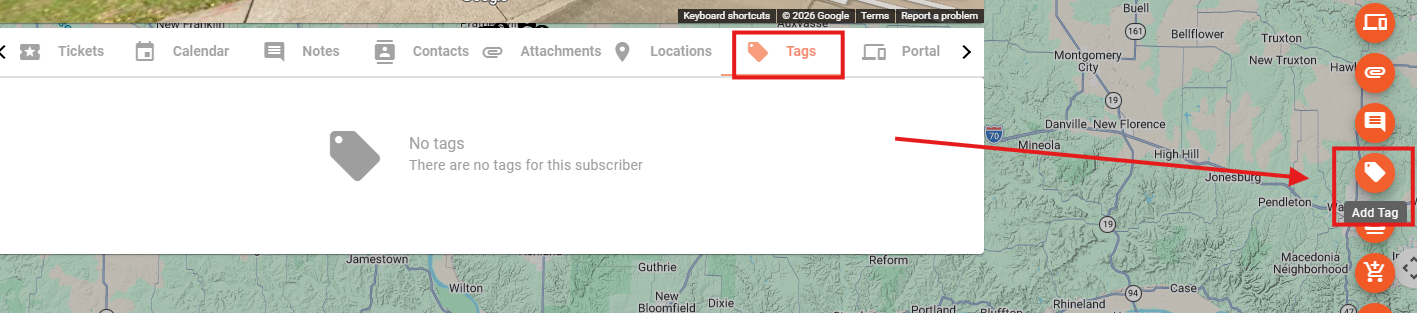
- Open the subscriber account and select the option to add a tag.
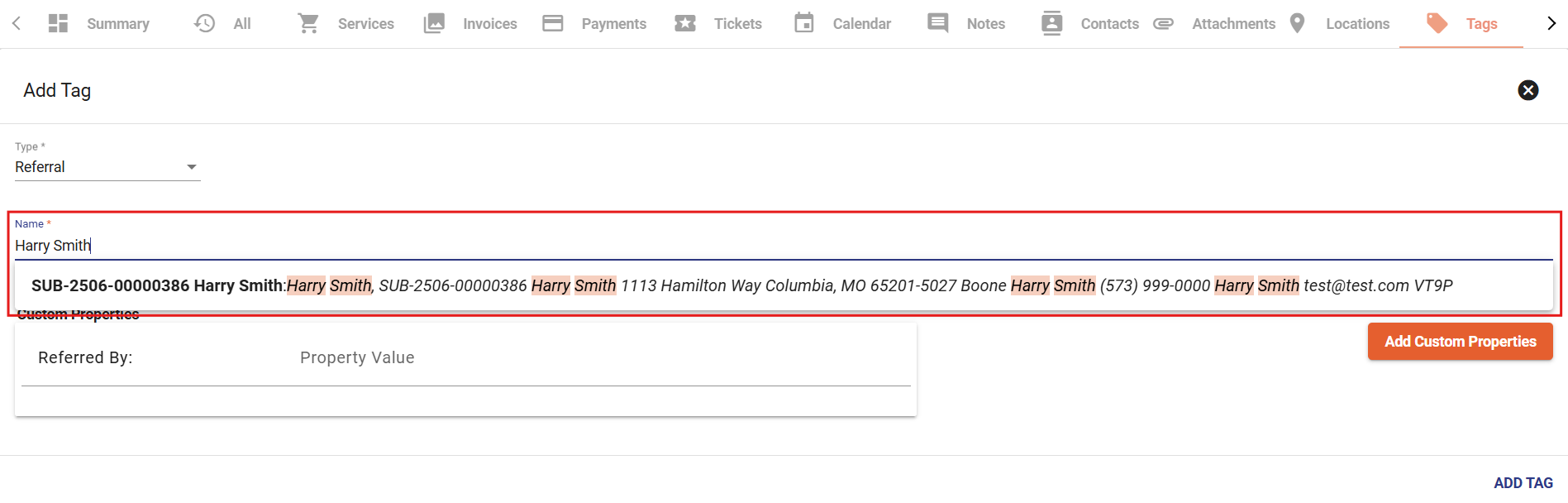
- Choose the applicable referral tag.
- Search for and select the existing Subscriber who referred the new Subscriber; their information will appear on the Referral Tag on the new Subscriber's account.
- Optional - Add more details via the Custom Properties section.
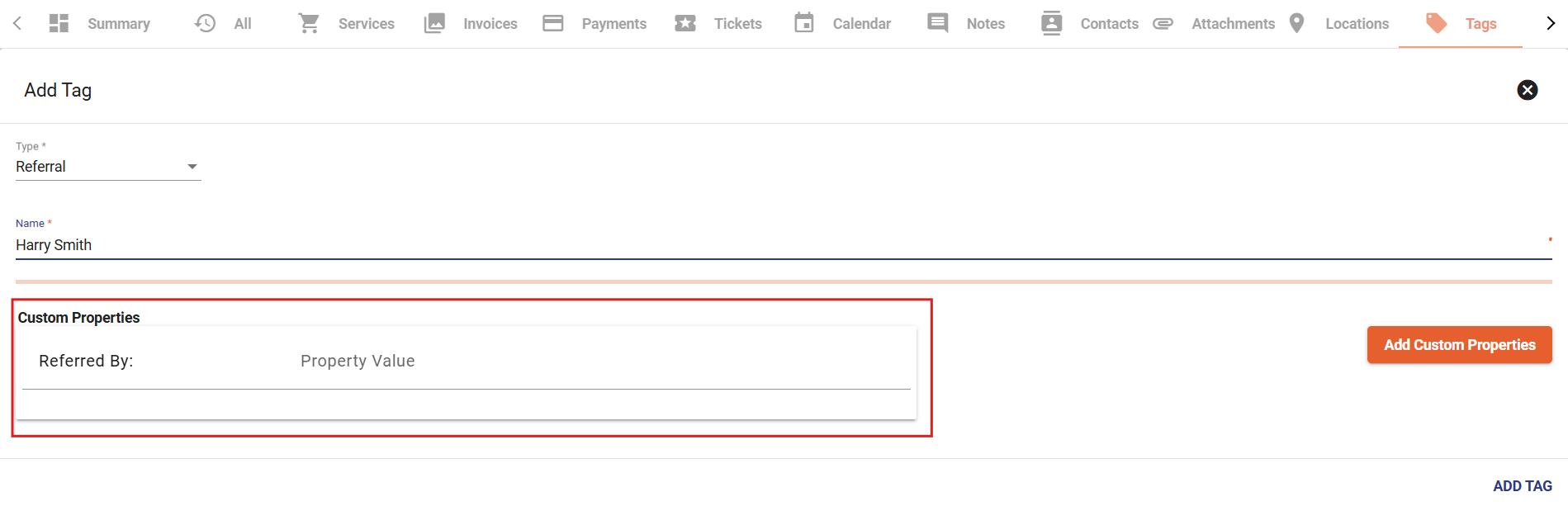
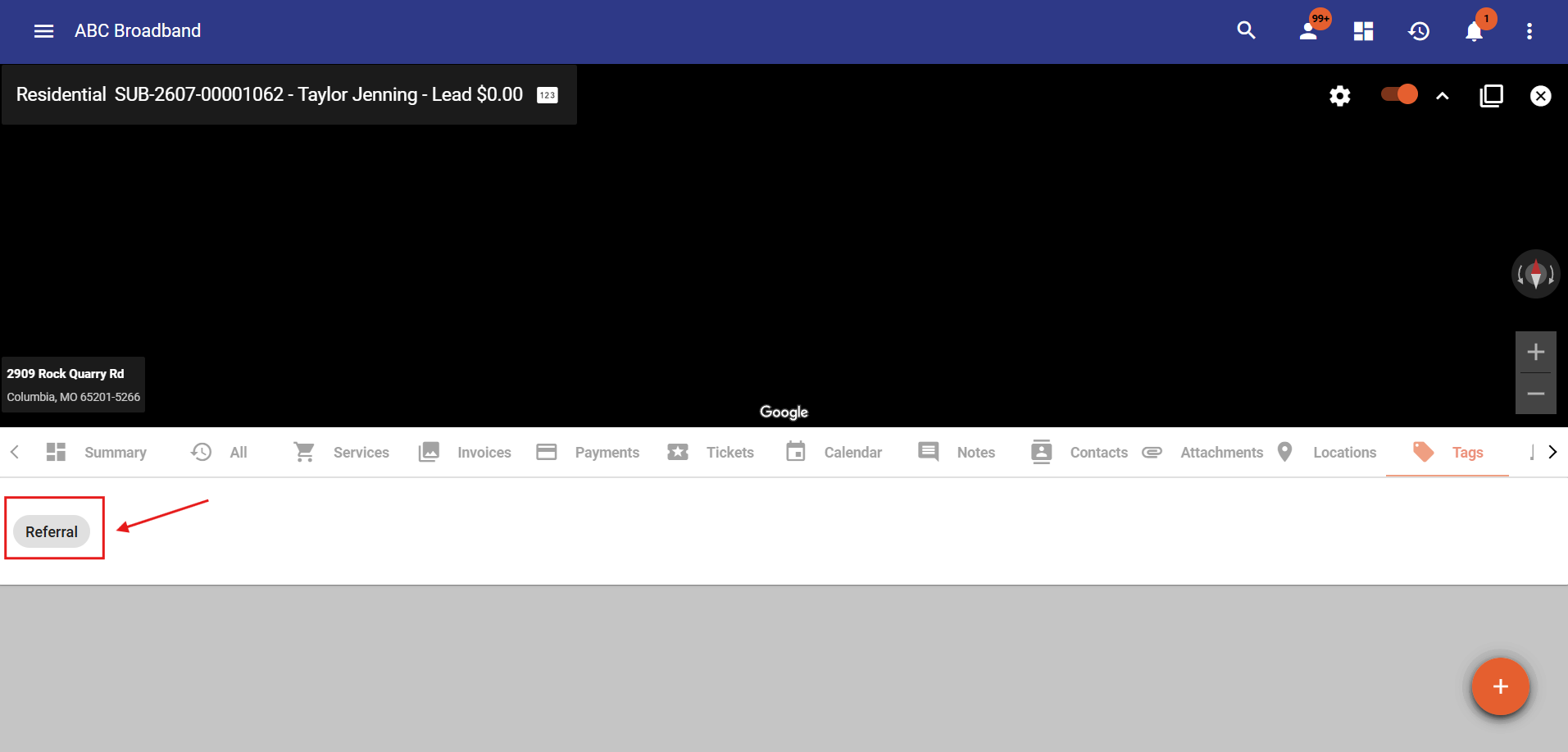
- If Overlay is enabled these details will appear when opening a Subscriber's account.
- Referral tags can be viewed from the subscriber account’s Tags tab.
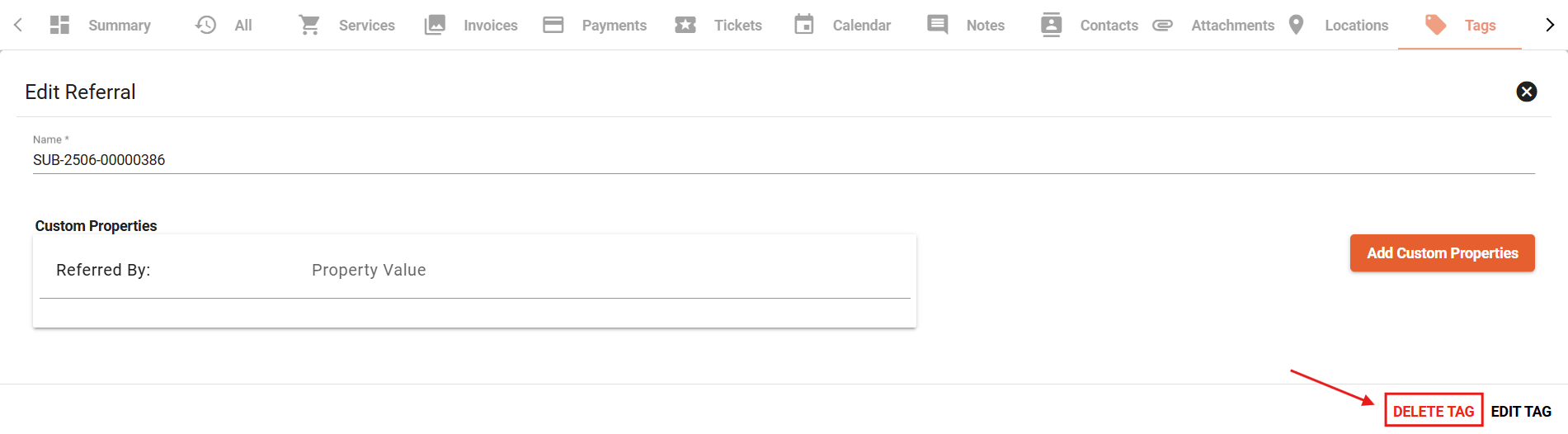
To make changes: Select the applicable Tag and click Edit.
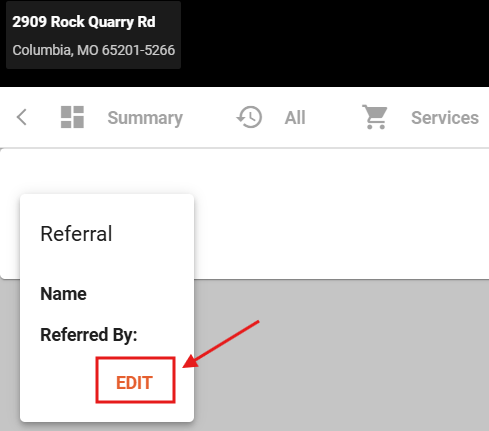
To remove a Tag: Select the applicable Tag, click Edit, and click Delete Tag.
Note: The Referral Tag will only appear on the account of the Subscriber who was referred.
Example: Taylor was referred by Harry and entered Harry's referral code in the Shopping Cart. The Referral Tag will appear on Taylor's account only; no Referral Tag will appear on John's account for this referral.
Important Notes
Referral tags are required for referral tracking and credit application. Without a referral tag, Vision cannot connect the referred subscriber to the referrer.
Referral workflows are used to evaluate eligibility and apply credits based on the provider’s configured referral credit rules.
Providers can use manual or automated referral credit processes depending on their internal workflow.
Recurring credits are not currently supported by the newer referral workflow process. Referral credits are one-time only at this time.
Referral FAQs
- When does a Referral Tag get added to a Subscriber's account?
- The tag is added immediately after a customer checks out in the Shopping Cart using a Referral code.
- How can I see if a Subscriber has received the Referral Credit?
- All credits, including the Referral Credit(s) will appear on a Subscriber's account via the Payments Tab.