Mobile Web View Navigation
Vision is a cloud-based system built with mobile access in mind. Because Vision can be accessed through a web browser, users can view and use the web version of Vision on mobile devices while working outside of the office.
This page focuses on using the web version of Vision from a mobile browser, not the Vision Mobile App. While both options support remote work, the mobile browser view gives users access to Vision through their device’s internet browser, similar to how they would access Vision from a desktop.
Sharing these tips and examples with employees in the field can help them become more productive Vision users while working remotely. If there is an area of concern or your team has questions, your Vision Point of Contact can reach out to the Support Team for assistance.
Overflow Menu
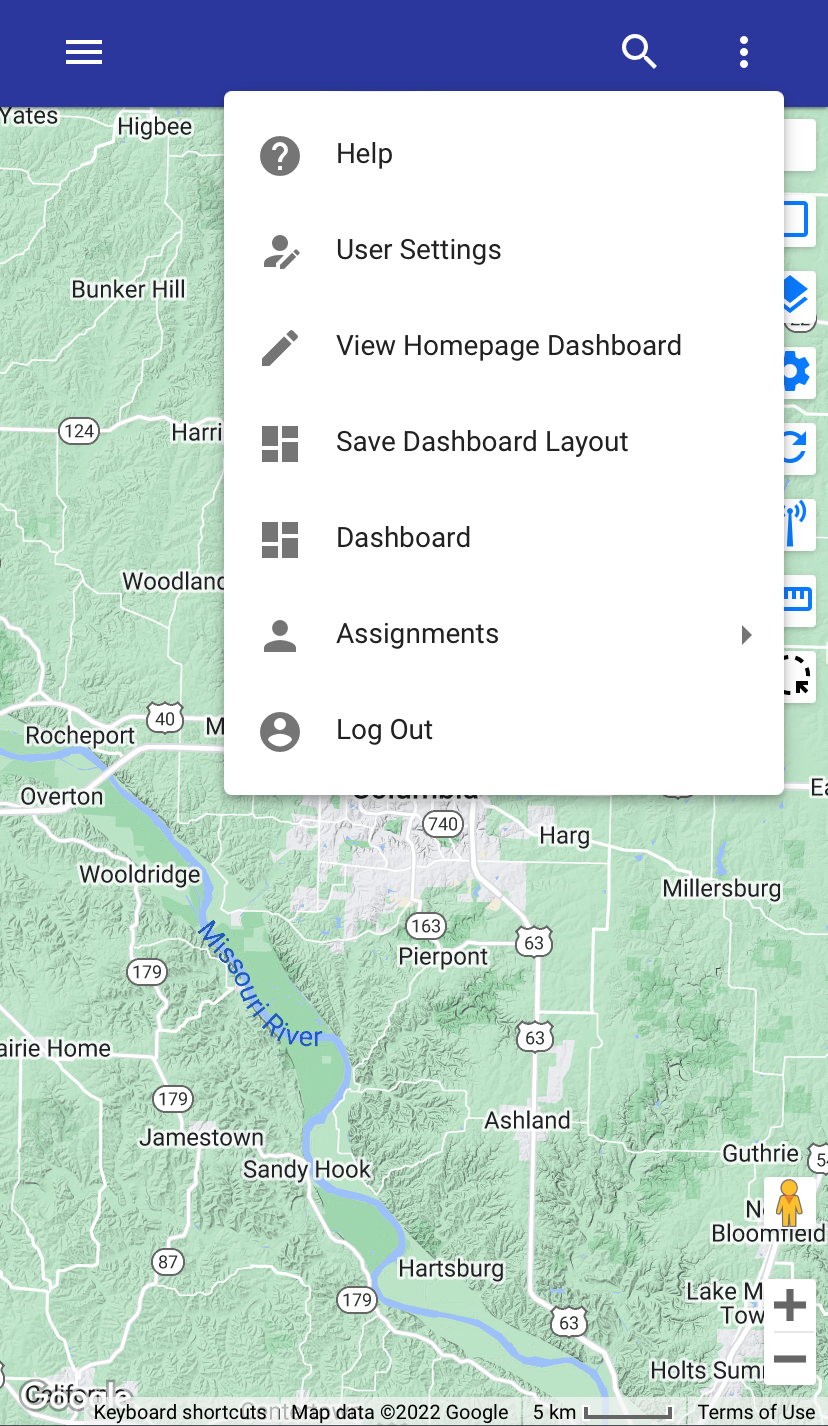
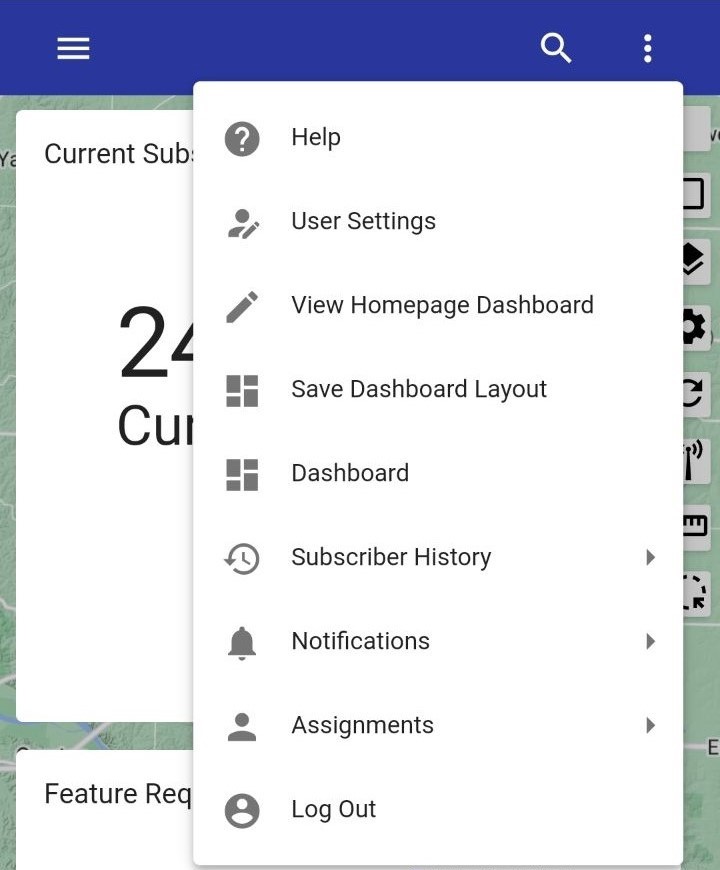
Below is a sample view of the Overflow Menu (3-Dot Menu) represented in the iOS view and in the Android view.
Dashboard
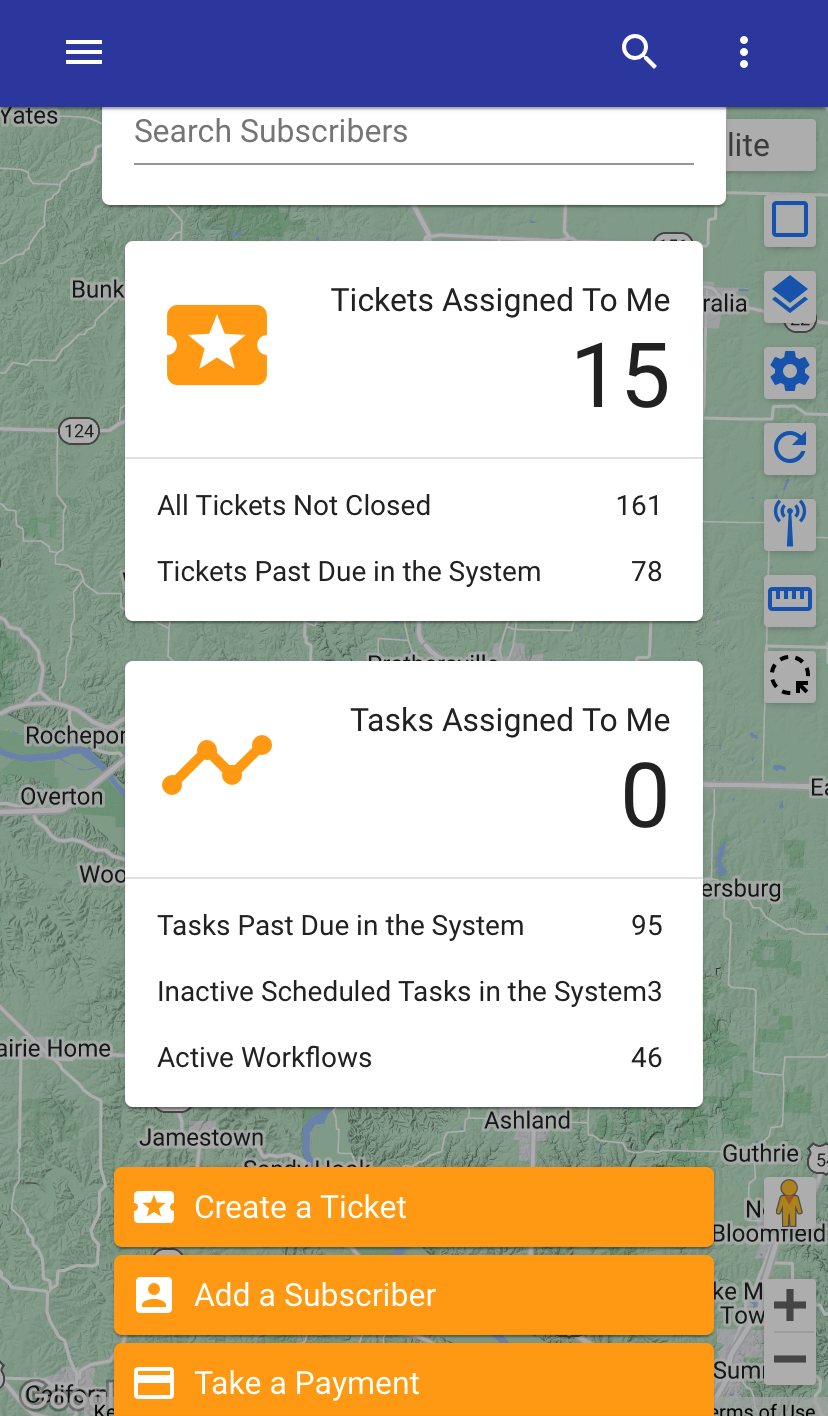
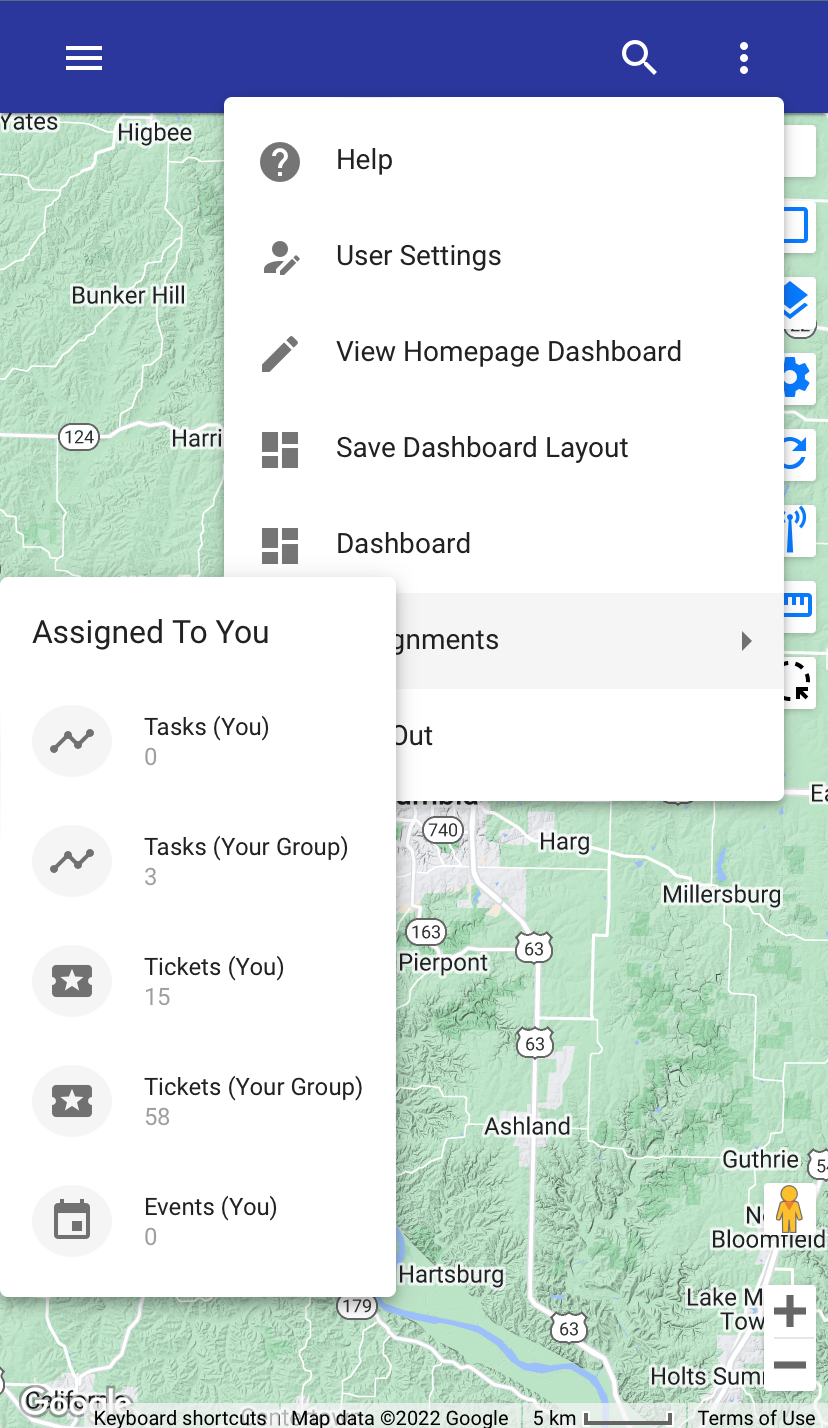
Navigate to your Dashboard using the overflow menu (3-dot menu). From the Dashboard you can tap into your tickets or tasks to view more details.
Tickets and Tasks
You can tap assignments under the overflow menu. There you can view your tickets and tasks or your group’s tickets and tasks.
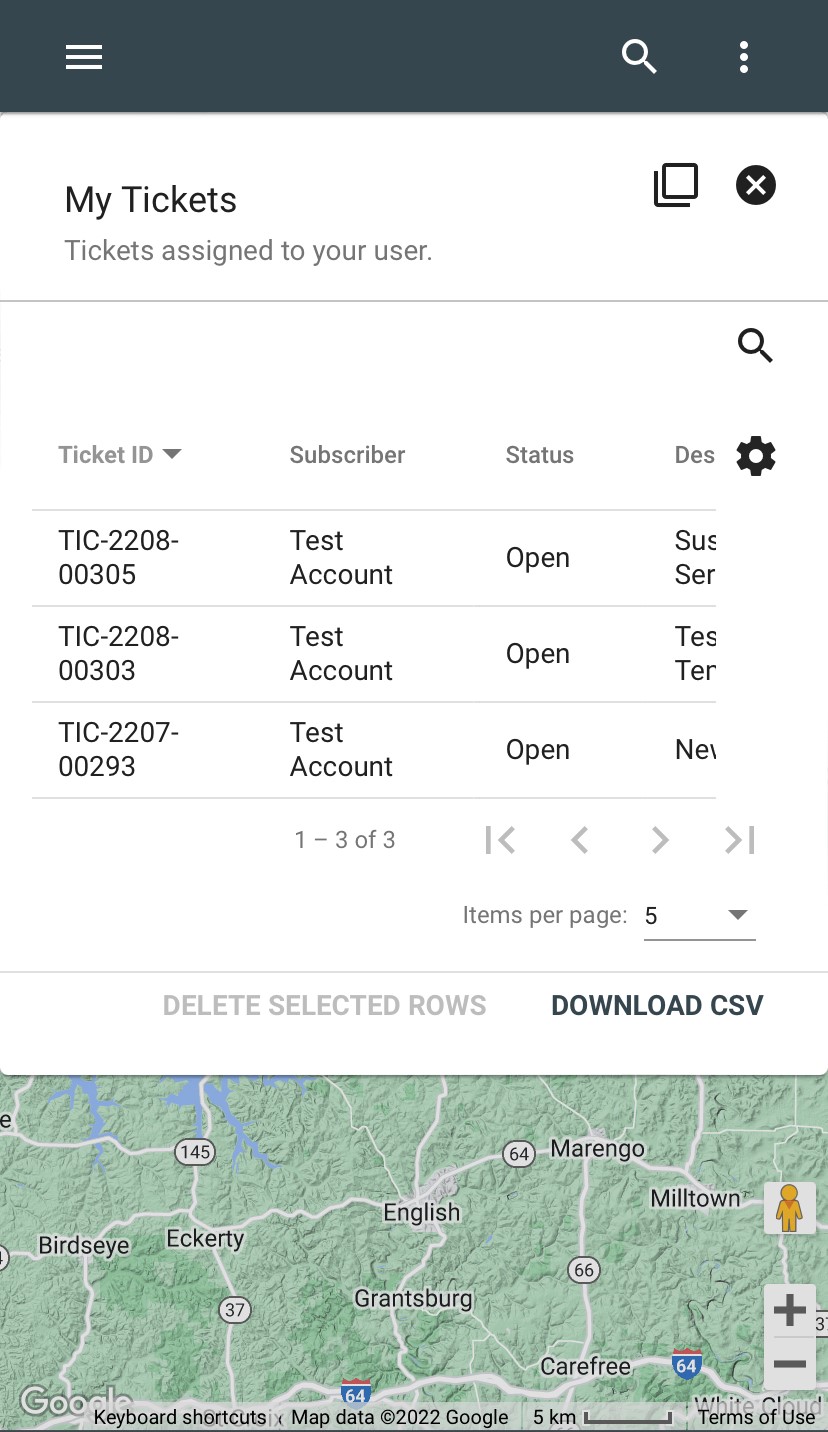
Selecting tickets assigned to you will bring you to your list of tickets. There you can view the ticket ID, Subscriber, Status, etc. Tap into the ticket ID number to see the ticket you want to view.
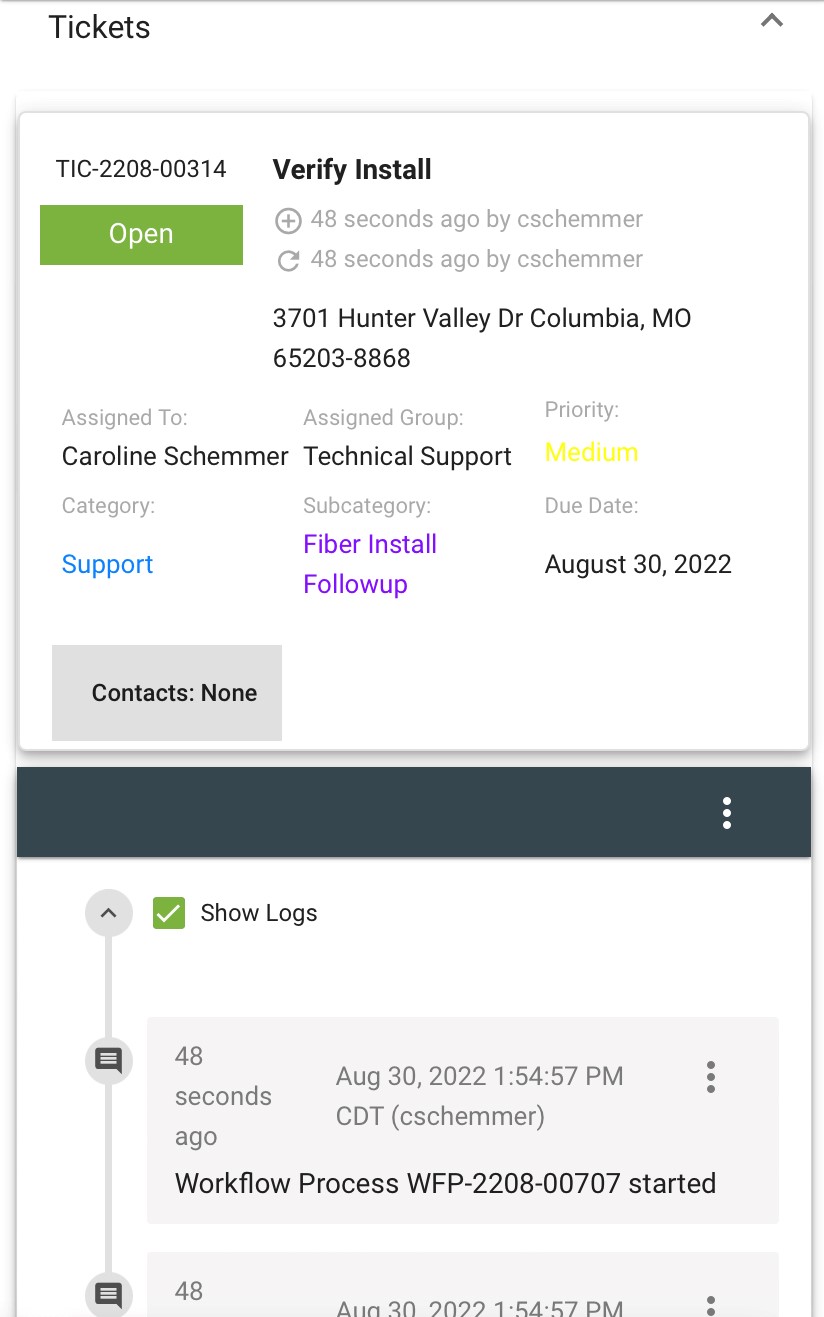
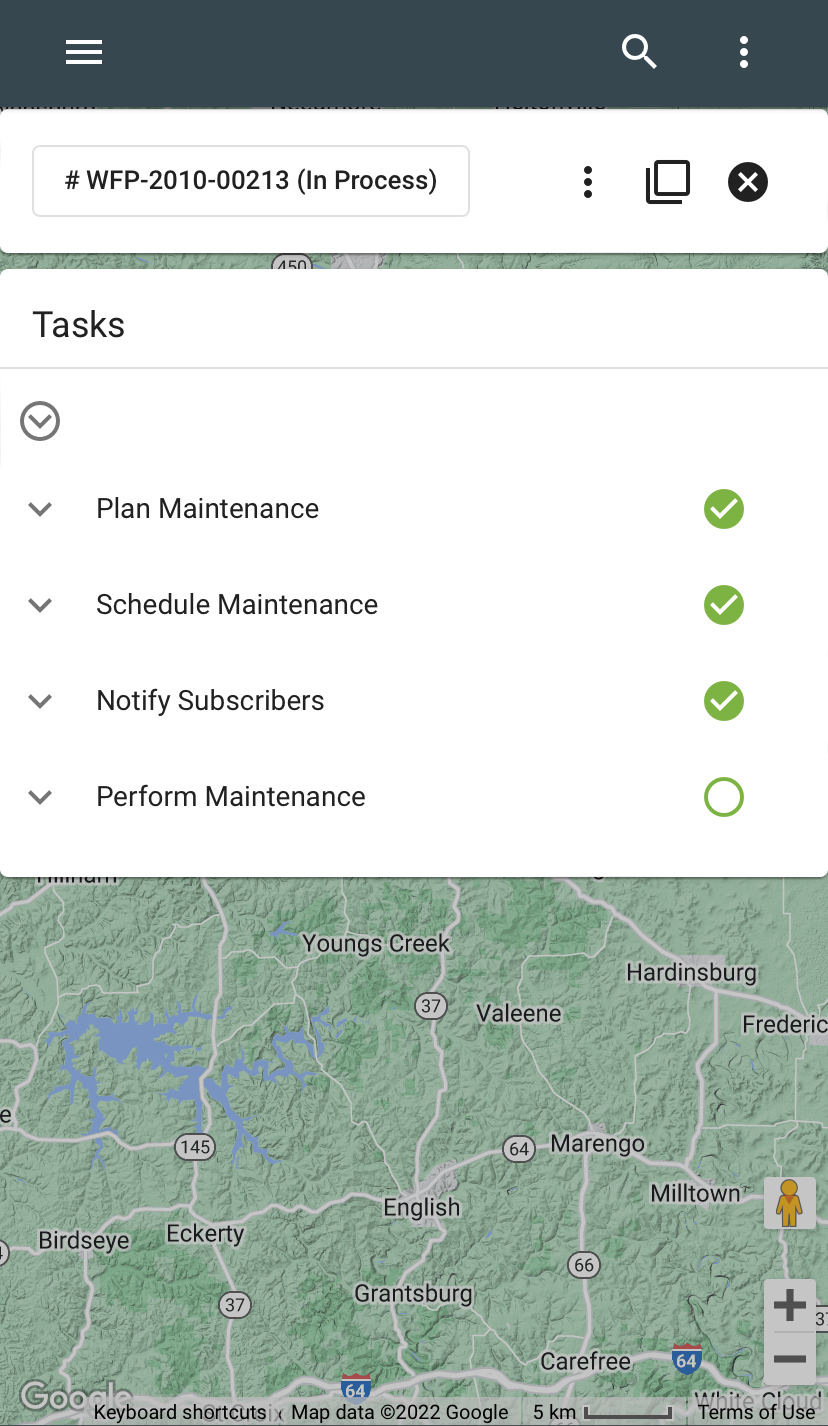
Selecting tasks assigned to you will bring you to your list of tasks. Tap on the task you want to view. There you will see the task and the workflow details. Tap on the drop downs to view more information. Tap the workflow ID to view the subscriber associated with the workflow. Tap the 3-dot menu next to the workflow ID to view the workflow, add attachments, etc.
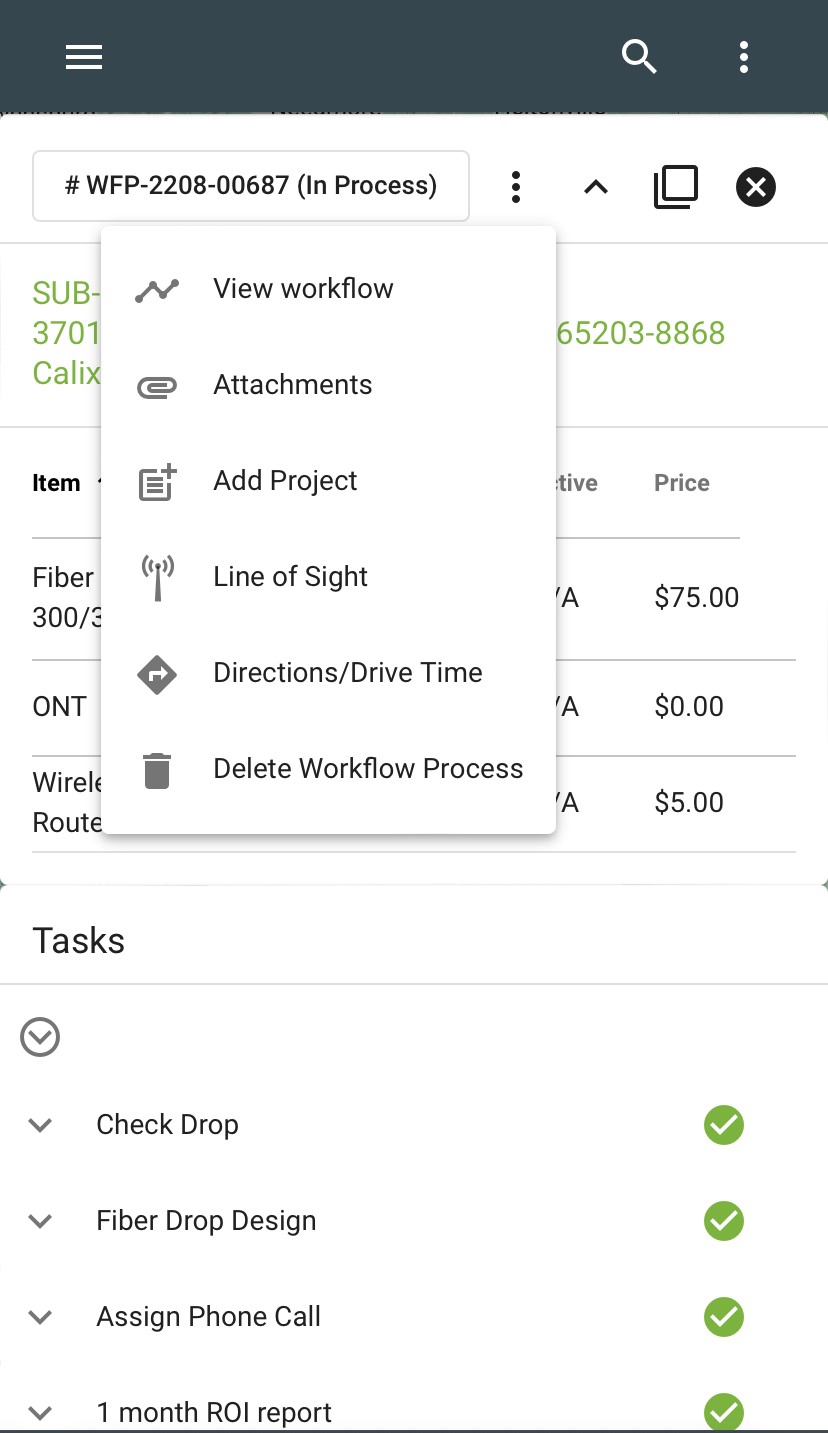
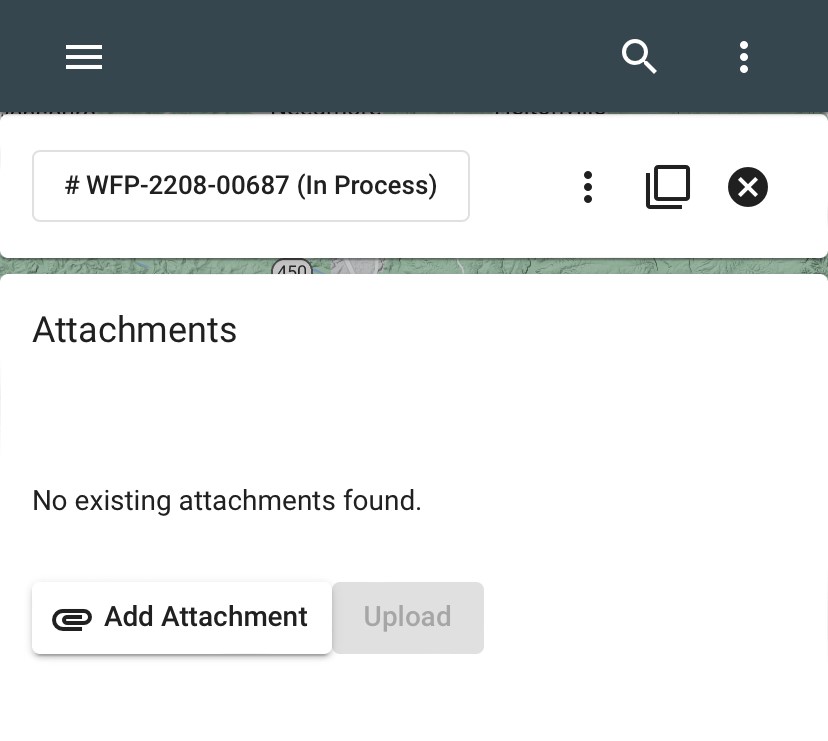
Subscriber Account Page
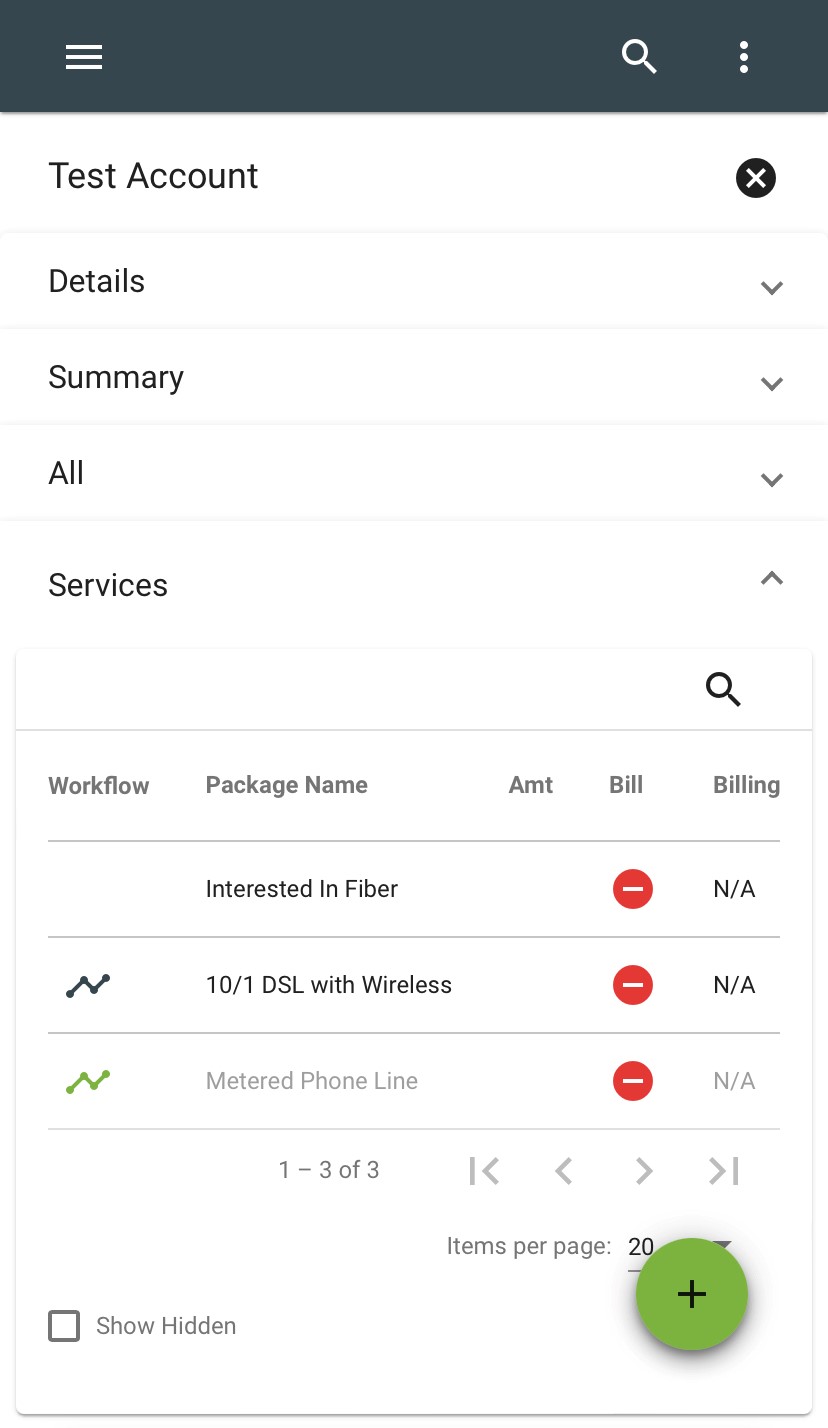
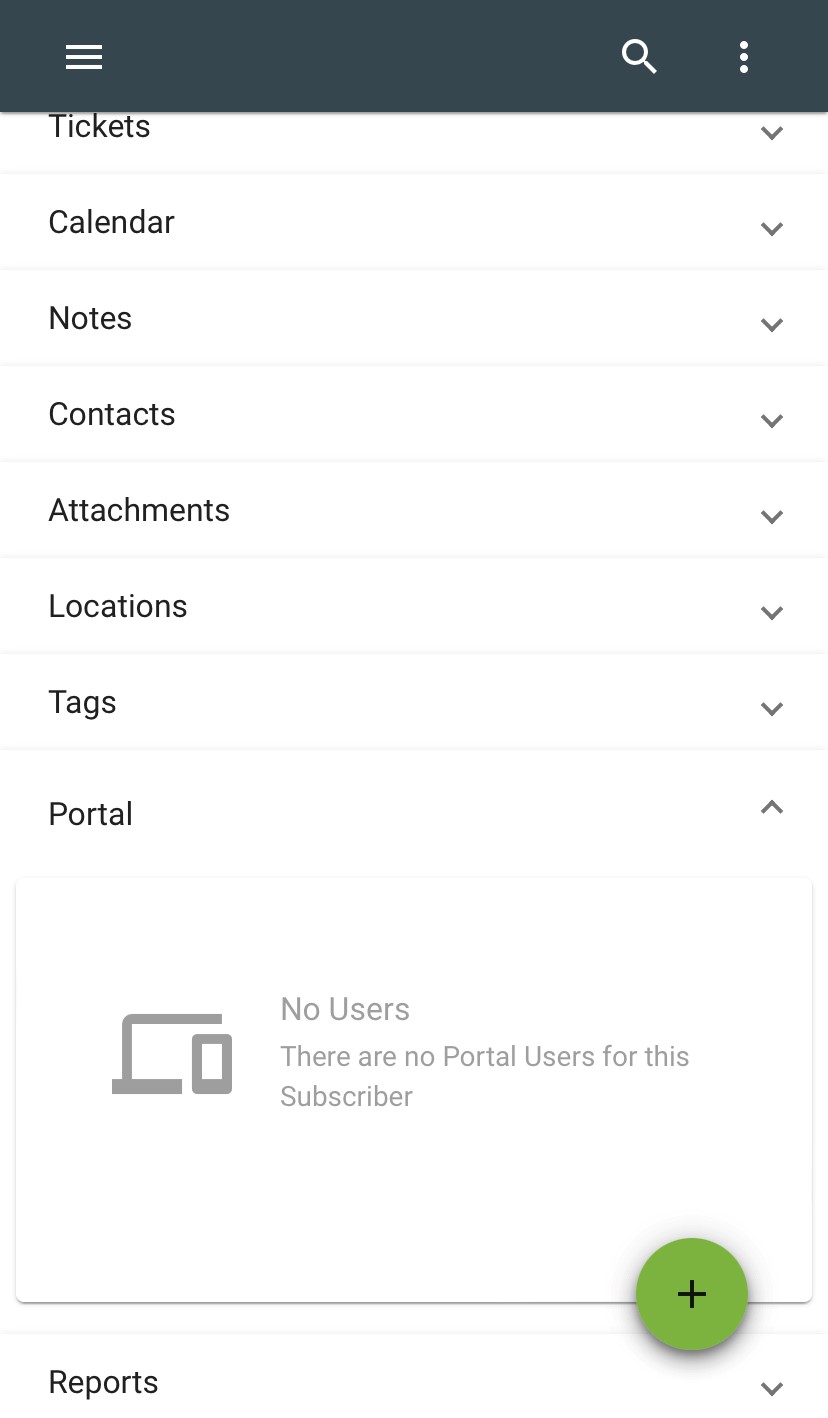
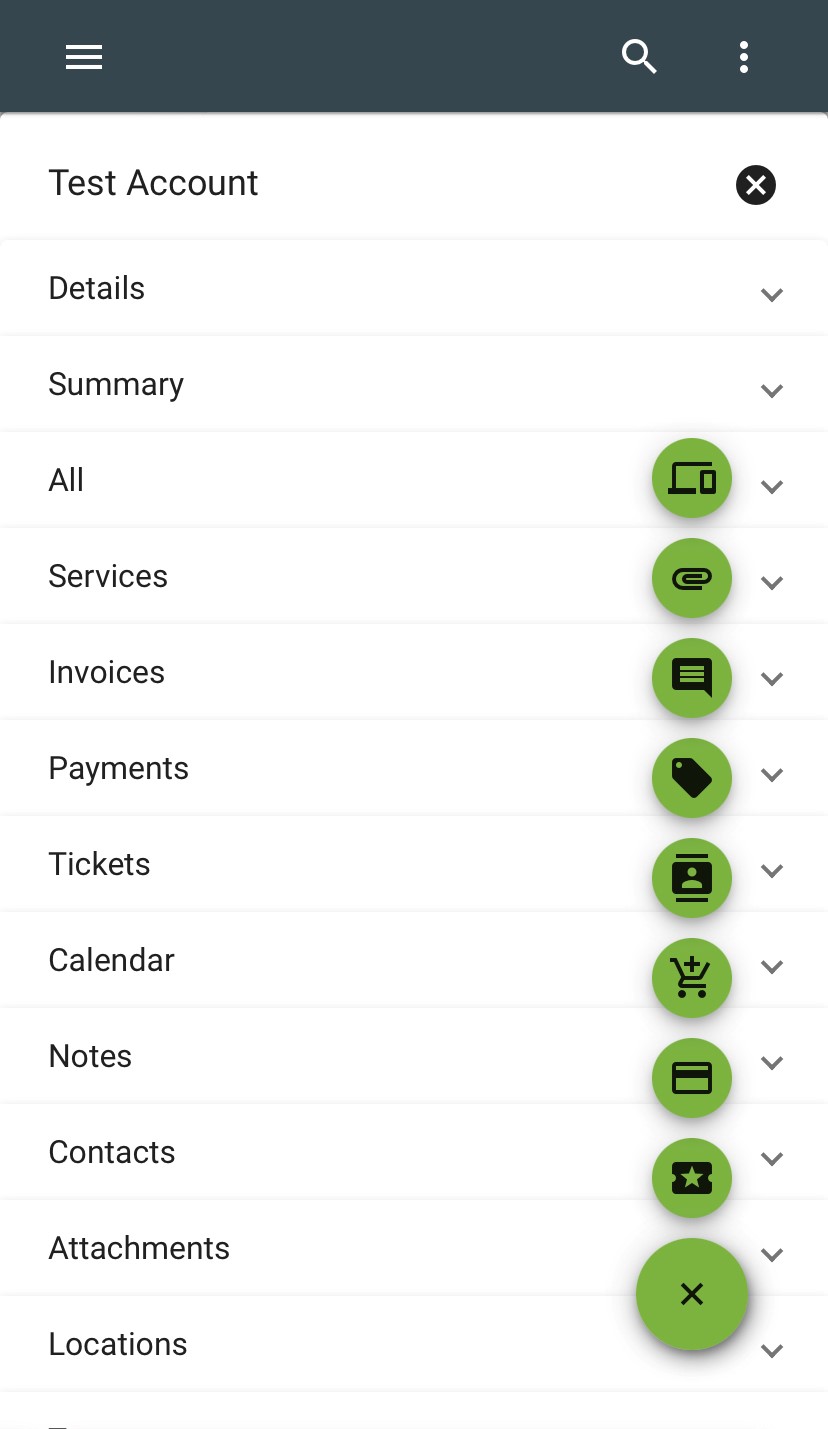
From the ticket view, you will also be able to view the Subscriber Account Page. The subscriber’s name will be displayed at the top of the page and all info tabs will be below that. Tap on the individual drop downs to access more details, such as the services tab and the portal tab. There will also be the FAB and where you can add a ticket, take a payment, add contact information, etc.
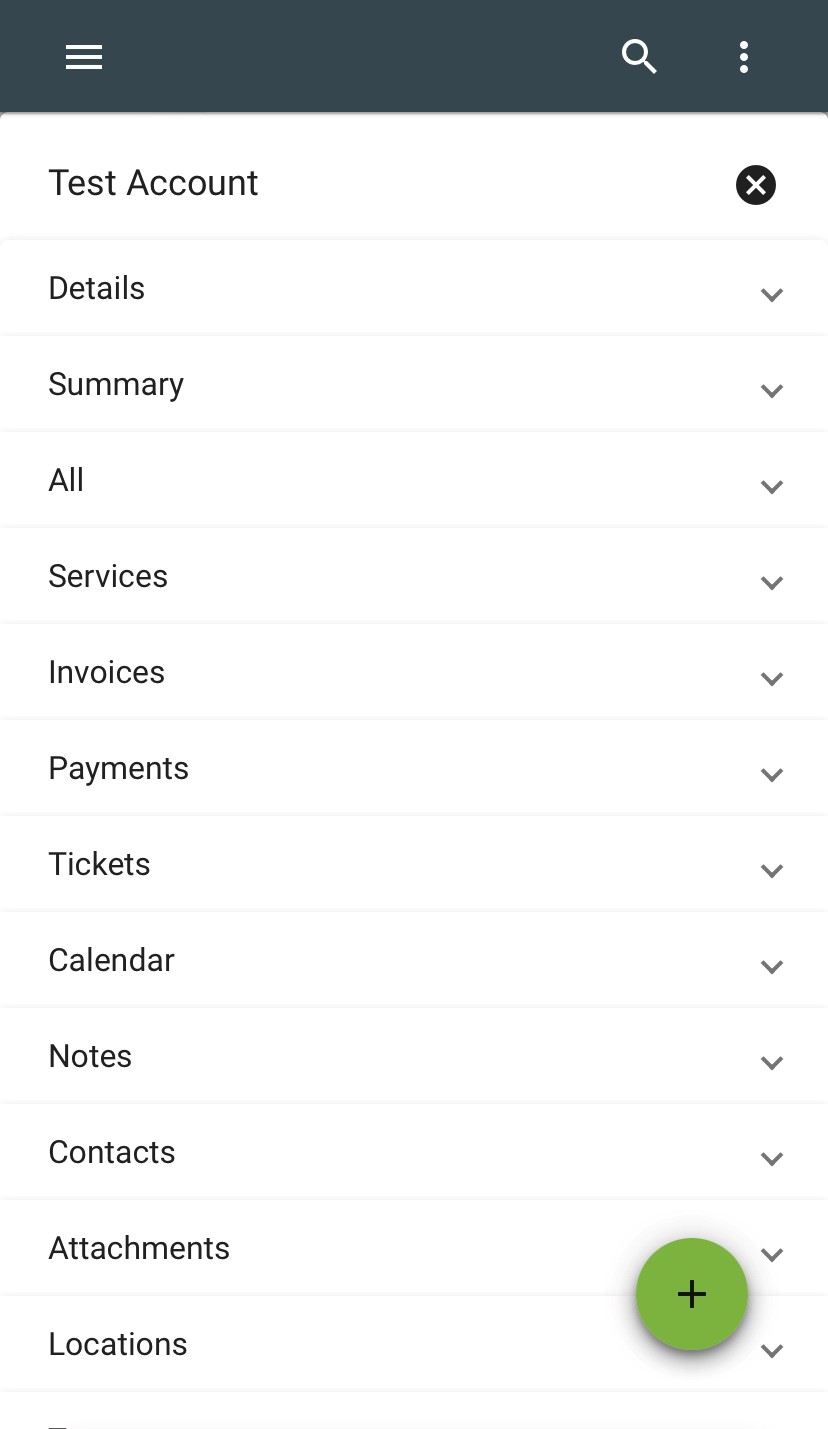
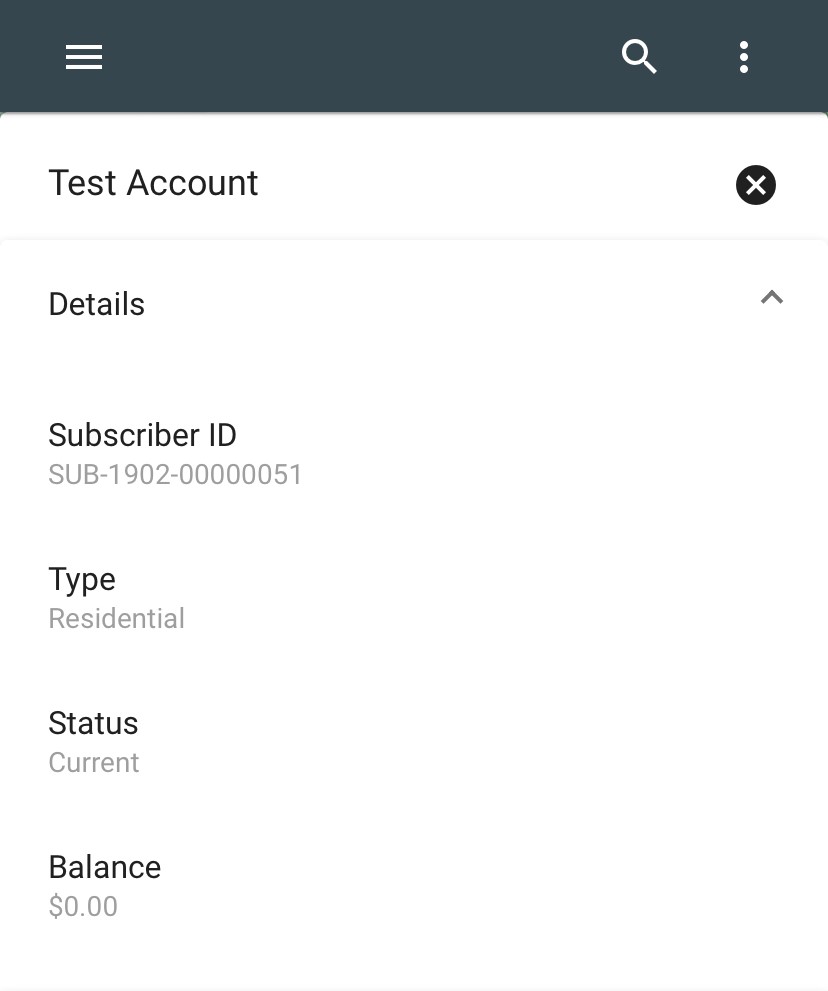
Main Menu
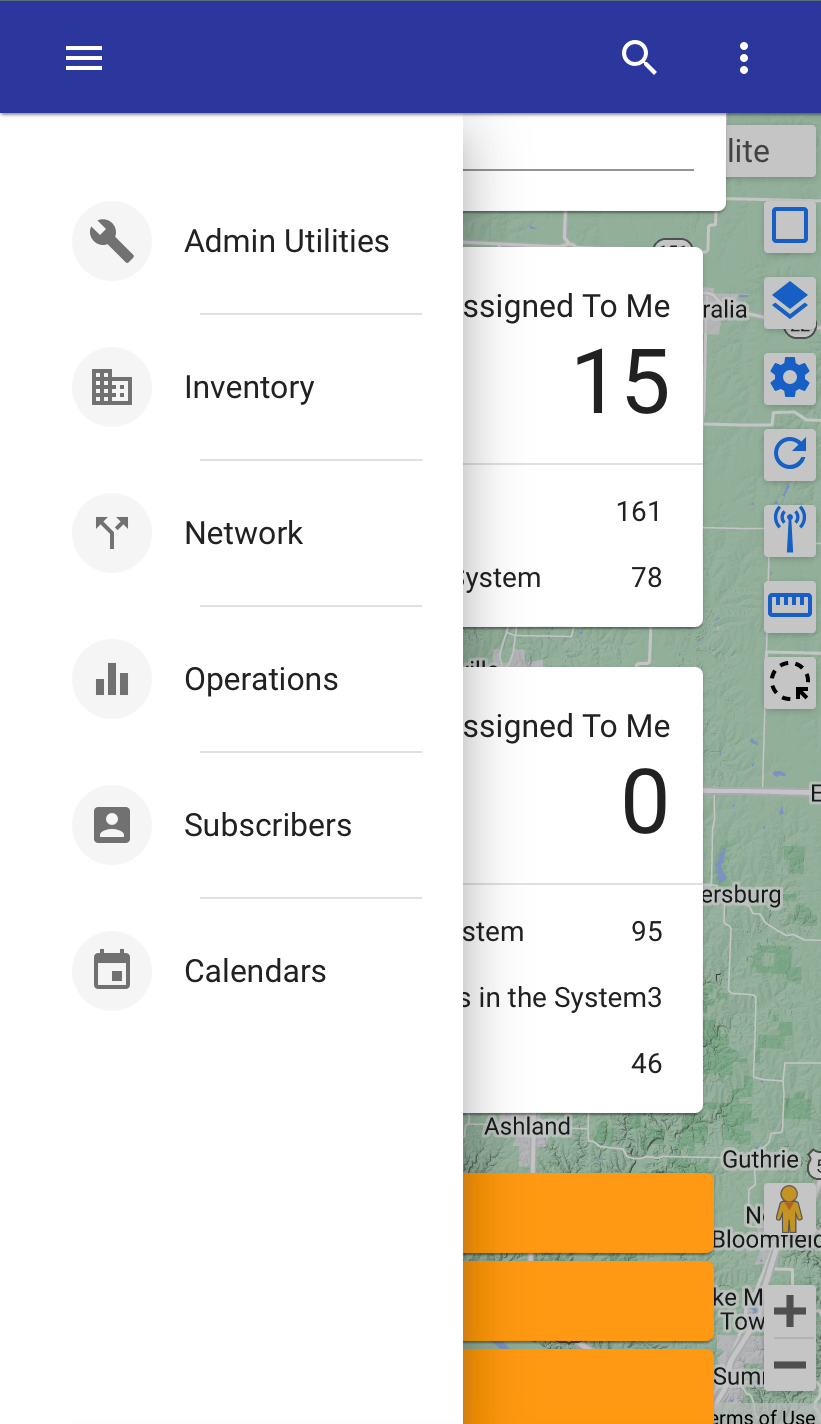
In the upper left-hand corner tap the main menu.
Calendar
From the main menu select Calendars 
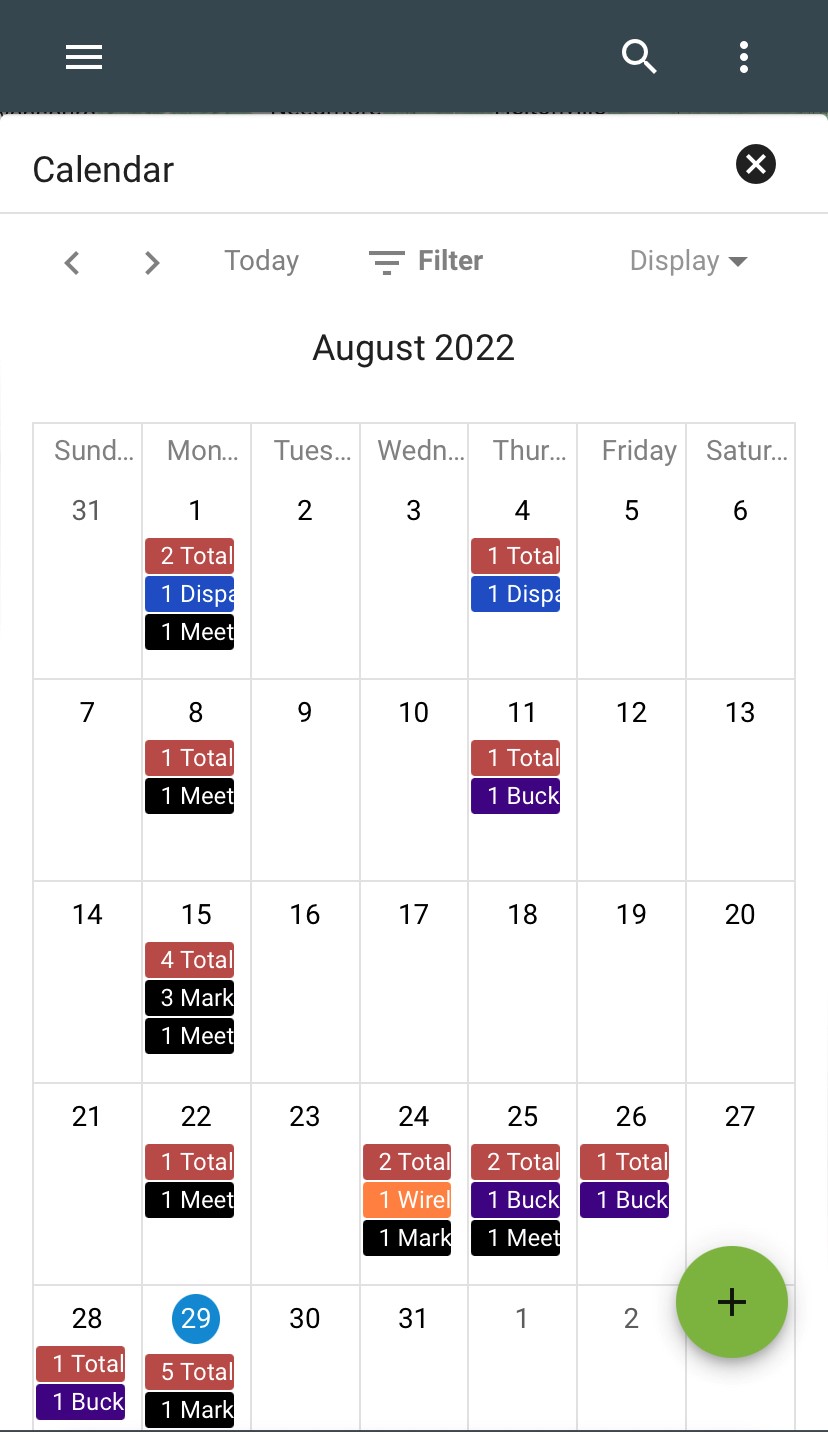
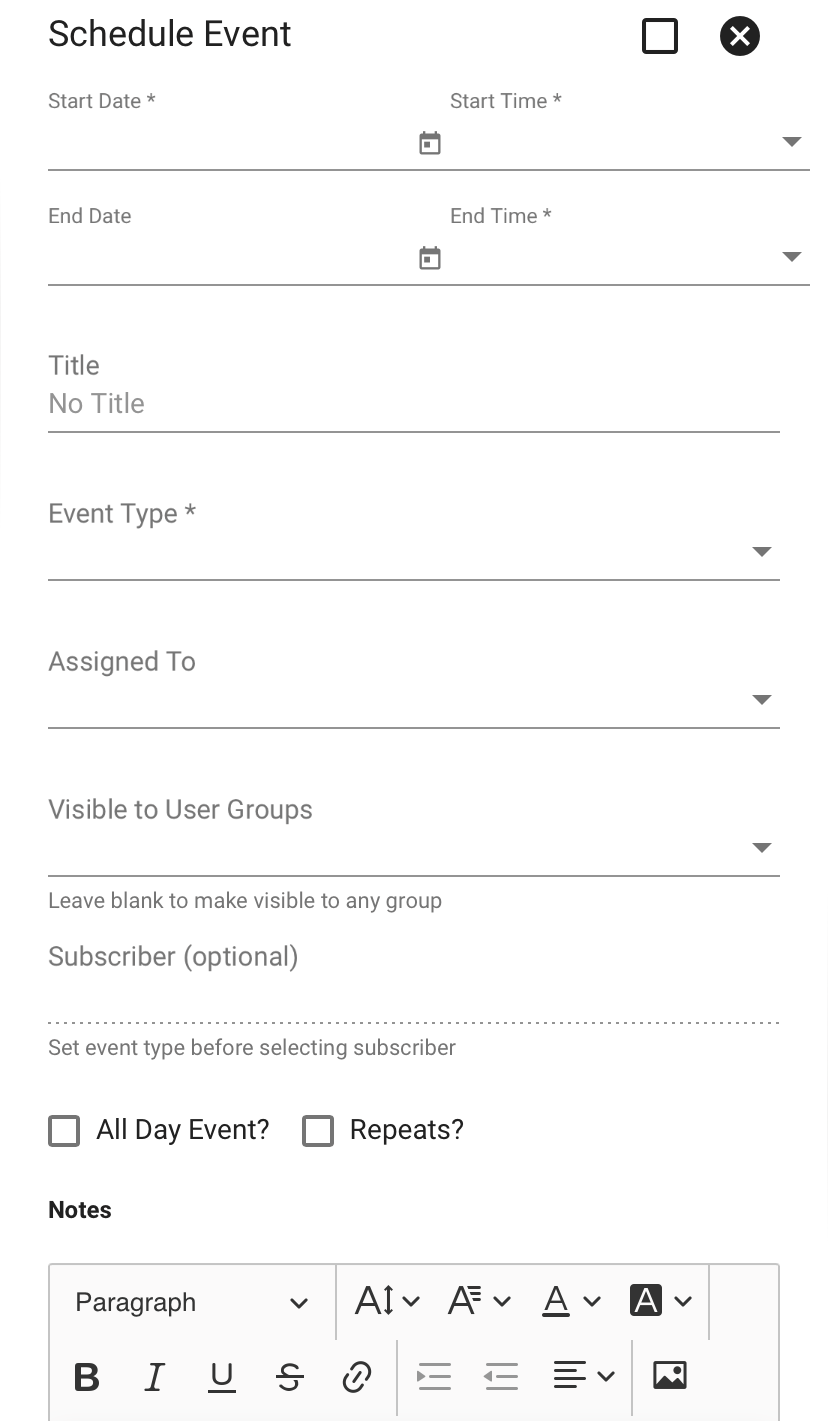
Click the FAB to schedule a new calendar event. Fill in the details and tap CONFIRM.