Mobile App Subscriber Page
The subscriber page is how you keep track of everything related to each specific subscriber. You can get to a subscriber page via a workflow assigned to them or the search page.
Quick Links
Details
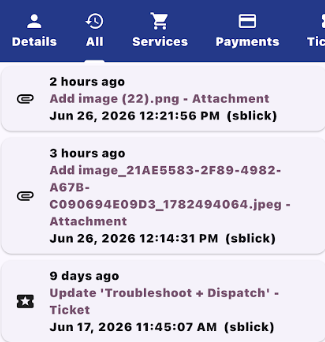
The main tab on the subscriber page is the "Details" tab. This has basic information about the subscriber like their subscriber ID, subscriber type, status, balance, email addresses, phone numbers, active services, and Wi-Fi management information.
All
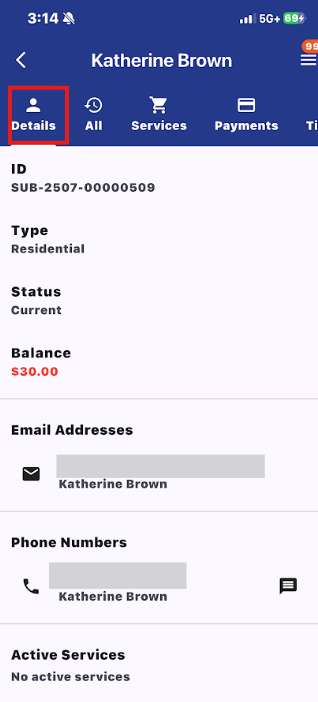
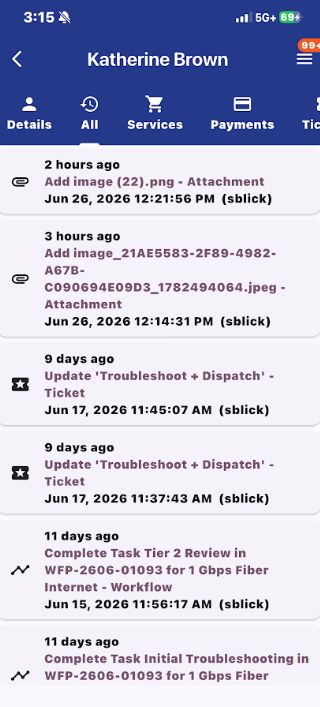
The all tab displays a timeline of every event related to the subscriber since the account was created. This includes information on their tickets and workflows as well as smaller information such as portal password changes or payments made.
Services
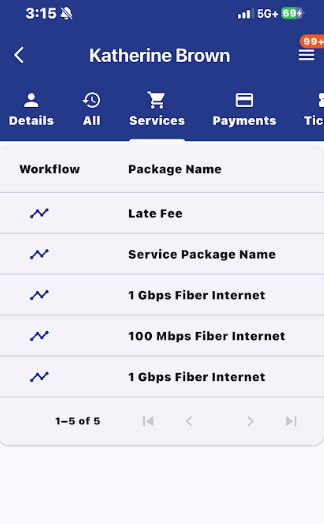
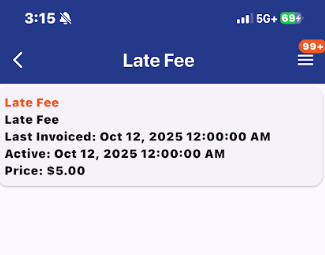
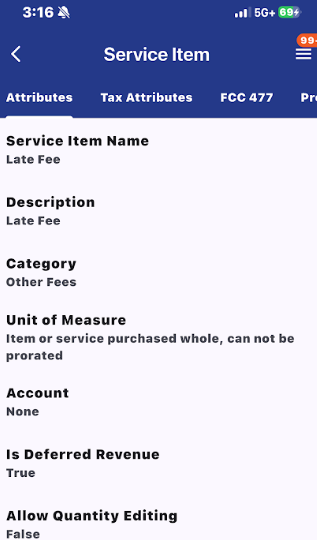
On the Services tab, users can view all packages on the account, along with any workflows associated with those packages. If workflows are available, selecting the workflow icon will open the related workflow. Users can also select a package name to open the package details page, where they can view the service items included in that package. From there, users can open individual service item pages for more detailed information.
Payments
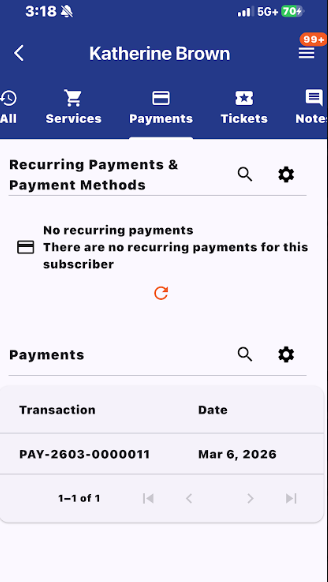
On this tab, you can see all recurring payments, payment methods, and individual payments for the subscriber.
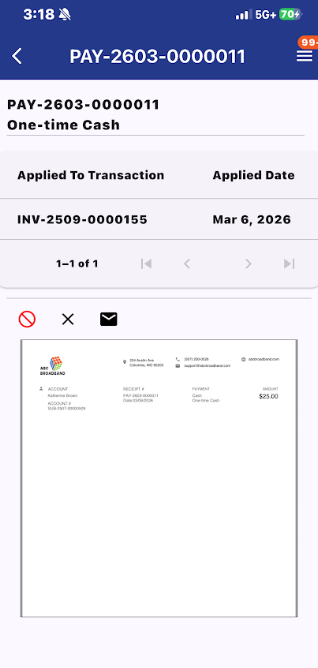
If you click into a payment, you can get more information about it like the invoice number and a pdf of the transaction.
Tickets
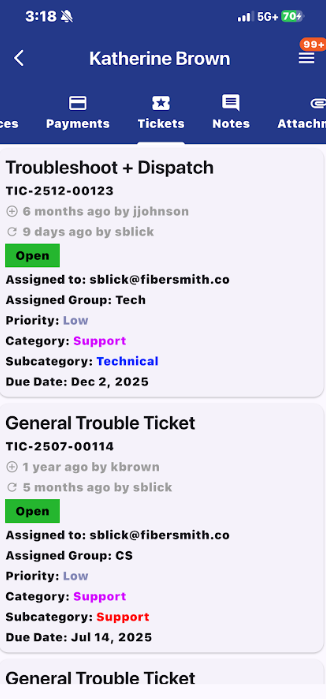
This tab displays all tickets associated with the subscriber. It shows basic information such as the ticket name, number, creation date, last updated date, status, ticket assignments, priority, category, and due dates. Click on any one of them to get taken to its ticket page.
Notes
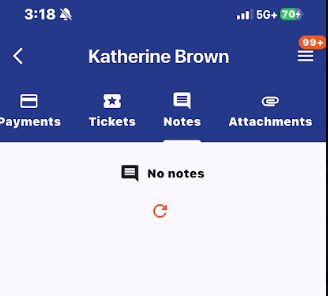
This tab shows any notes that were put on the page for the subscriber.
Attachments
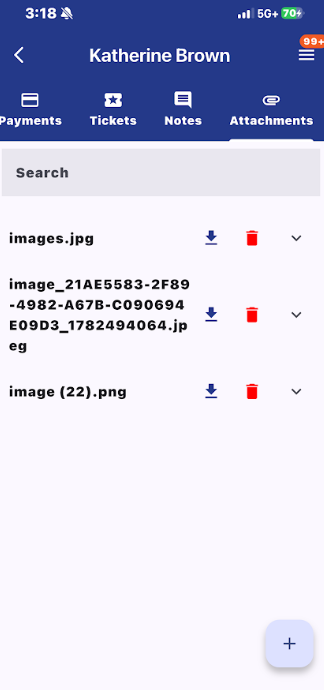
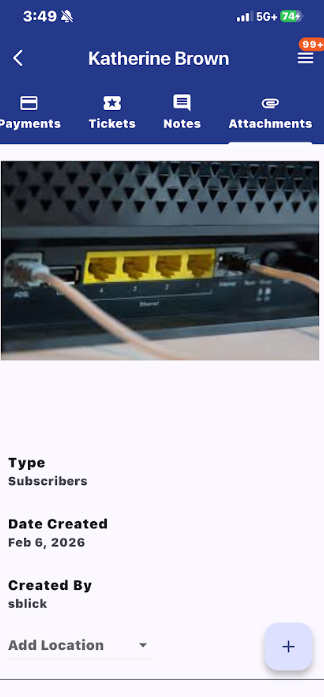
The attachments tab allows you to manage attachments for the subscriber. It will contain attachments from various sources related to the subscriber like trouble tickets, direct uploads to this tab, or uploads to workflows. With the listed attachments, you can download, delete, and expand them. When you expand an attachment card, it will allow you to preview the file if applicable, show you the type of attachment (upload source), created date, and which user created it. You can also add a location to the photo which is handy if a subscriber has multiple locations attached to their account. This way you can figure out which property that file was from.